How to Install an EA on MT5: Setup Steps and What to Do When It Doesn’t Run

“I want to try an EA on MT5, but I don’t know how to set one up…” This guide is for you: it explains how to install an EA and attach it to a chart. In short, the following 3 steps complete the installation on MT5 and the setup on the chart.
- Step 1: Paste the EA file into the MQL5 > Experts folder and restart MT5
- Step 2: Add the EA to a chart from the Navigator, and allow algorithmic trading in the “Common” tab
- Step 3: Turn on Algo Trading in the toolbar, and check the icon at the top right of the chart to confirm it is running
Unlike indicators, an EA will not start placing orders unless the permission settings are enabled. This is an easy place to trip up, so keep it in mind.
Table of Contents
What to Prepare Before Installing an EA
Before you begin, get the following ready. In particular, download the EA file and have it ready at this stage.
- An EdgeGraph FX trading account
- The account opening completion email, which contains your account number and password
- MT5 for PC
- An EA file for MT5. The extension is .ex5
To log in to MT5, use the trading password given in the account opening completion email, not your My Page password.
If you haven’t prepared MT5 yet, check out this article!

Step 1: Install the EA File in MT5
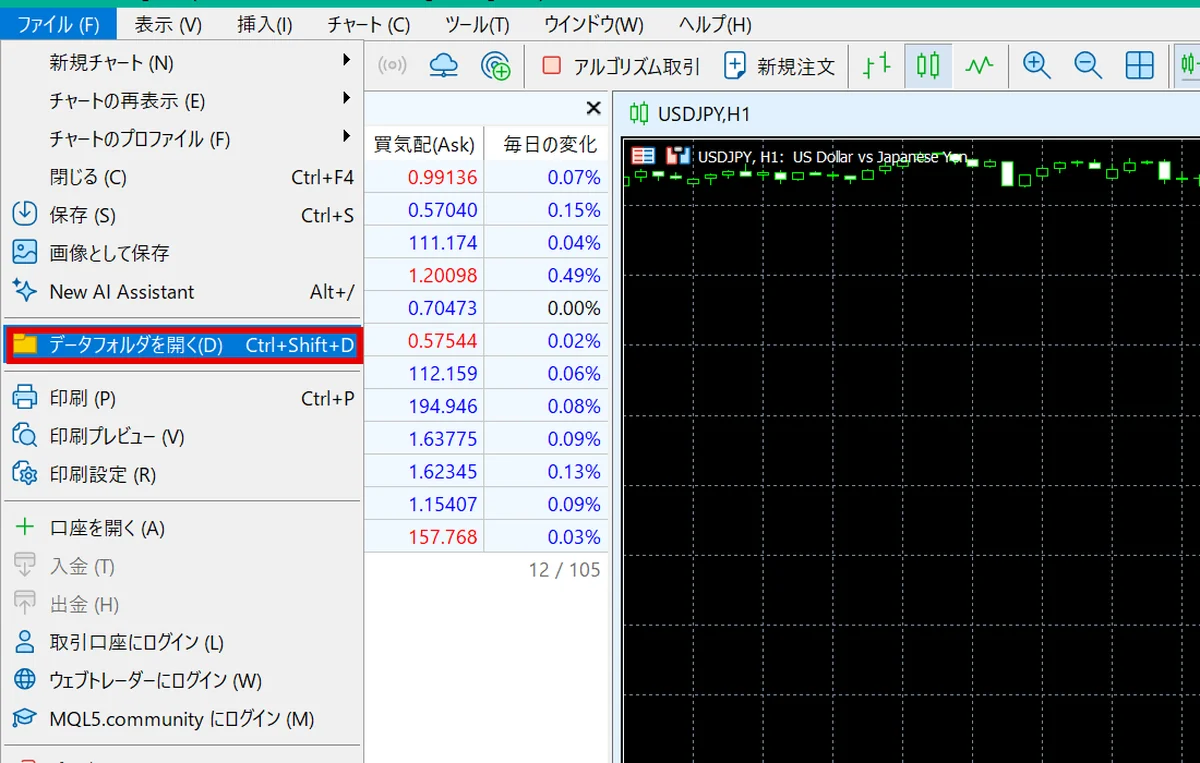
① From “File” in MT5, select “Open Data Folder.”
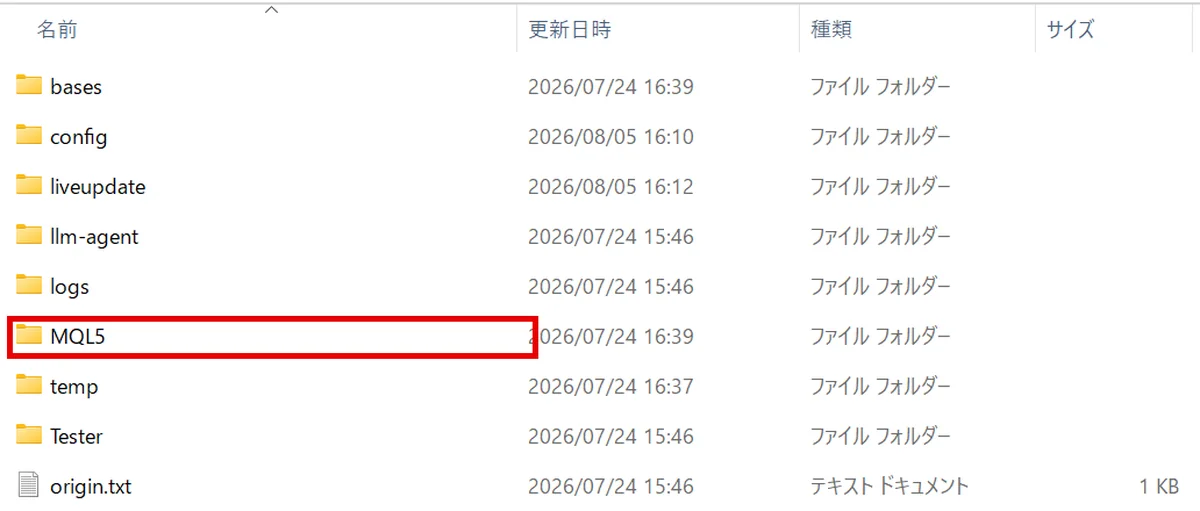
② Open the “MQL5” folder inside the folder that opens.
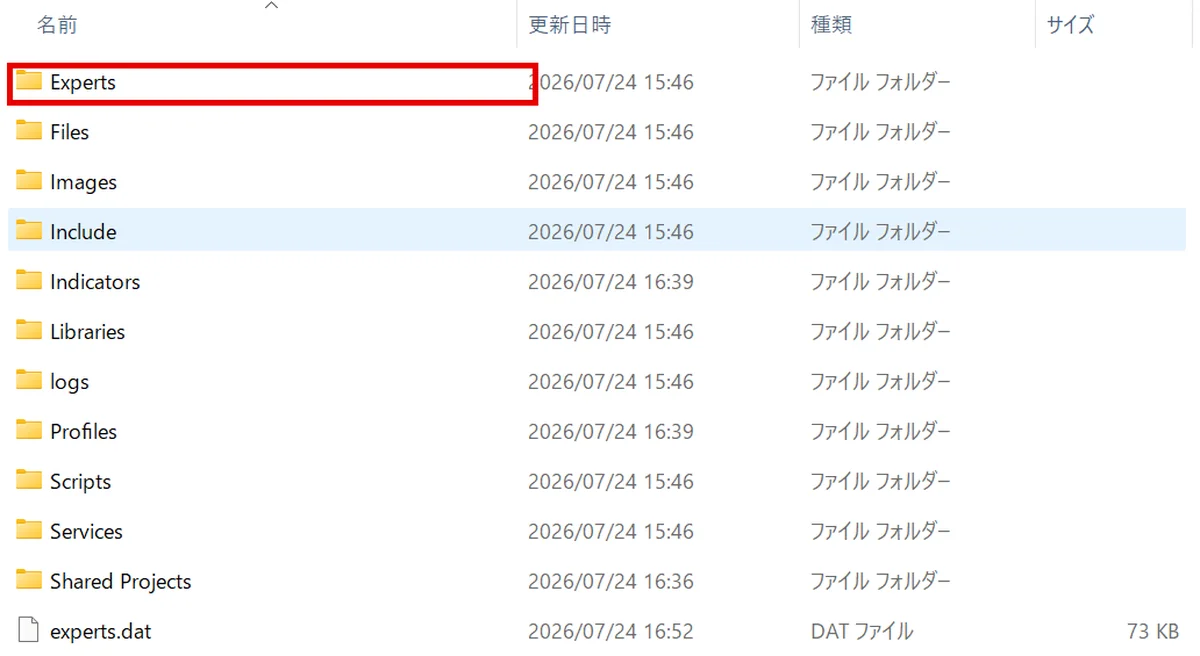
③ Open the “Experts” folder inside “MQL5.”
④ Paste the EA file (or drag and drop it). After saving, close the folder.
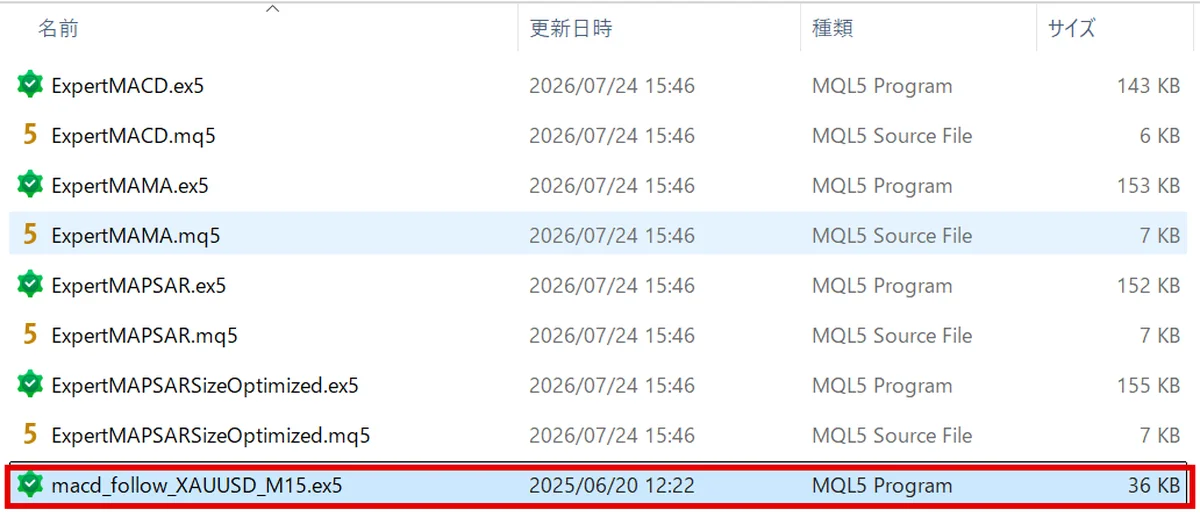
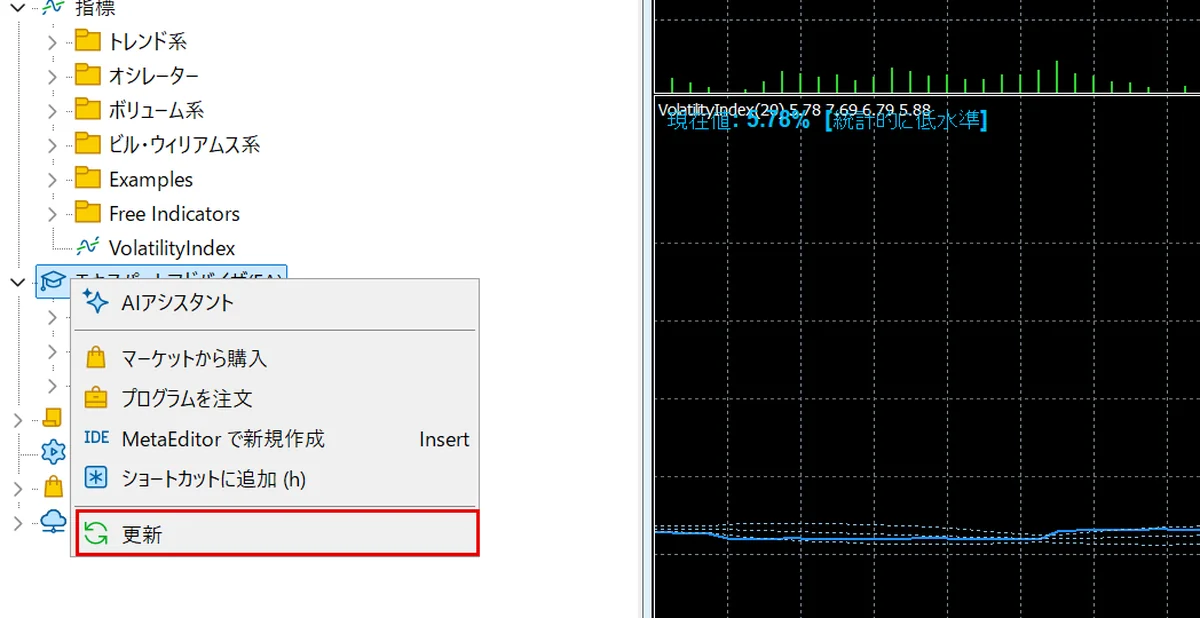
⑤ In the Navigator, right-click “Expert Advisors” and select “Refresh.”
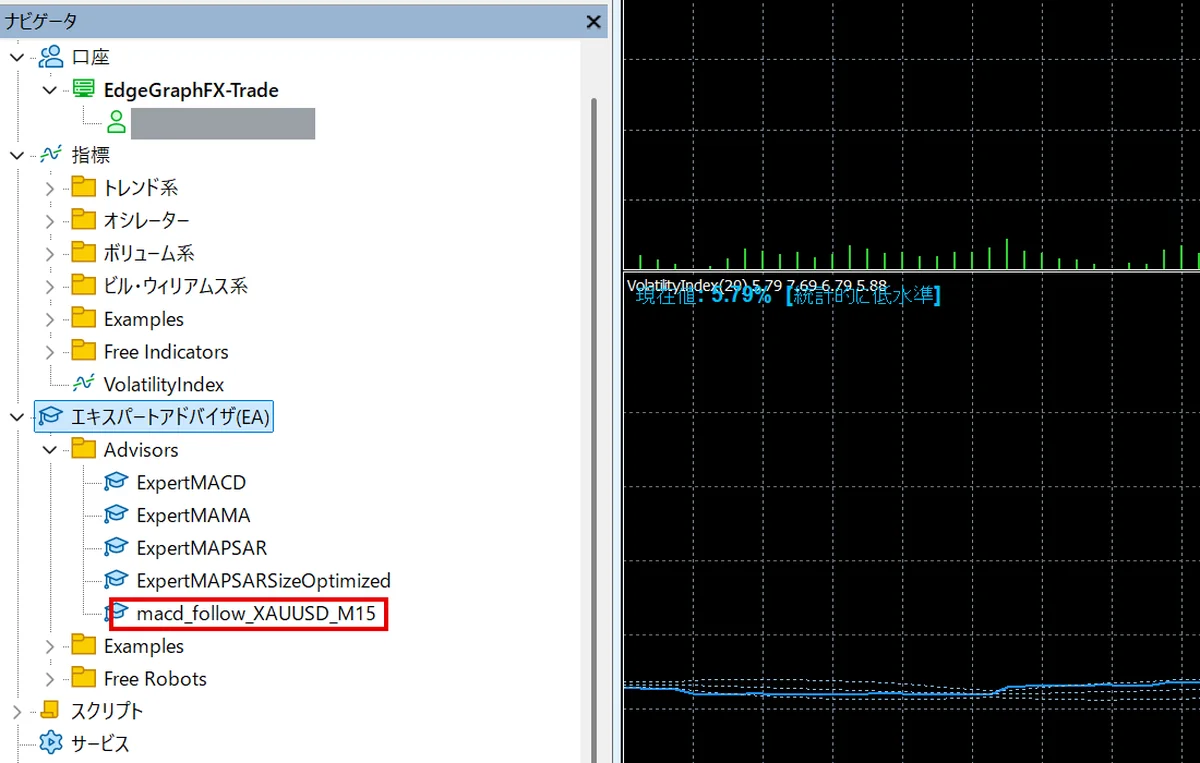
⑥ The EA you installed now appears under “Expert Advisors” in the Navigator.
Always paste the file into MQL5 > Experts. Even if you put it in the Indicators folder meant for indicators, it will not be recognized as an EA.
Step 2: Add It to a Chart and Allow Algorithmic Trading
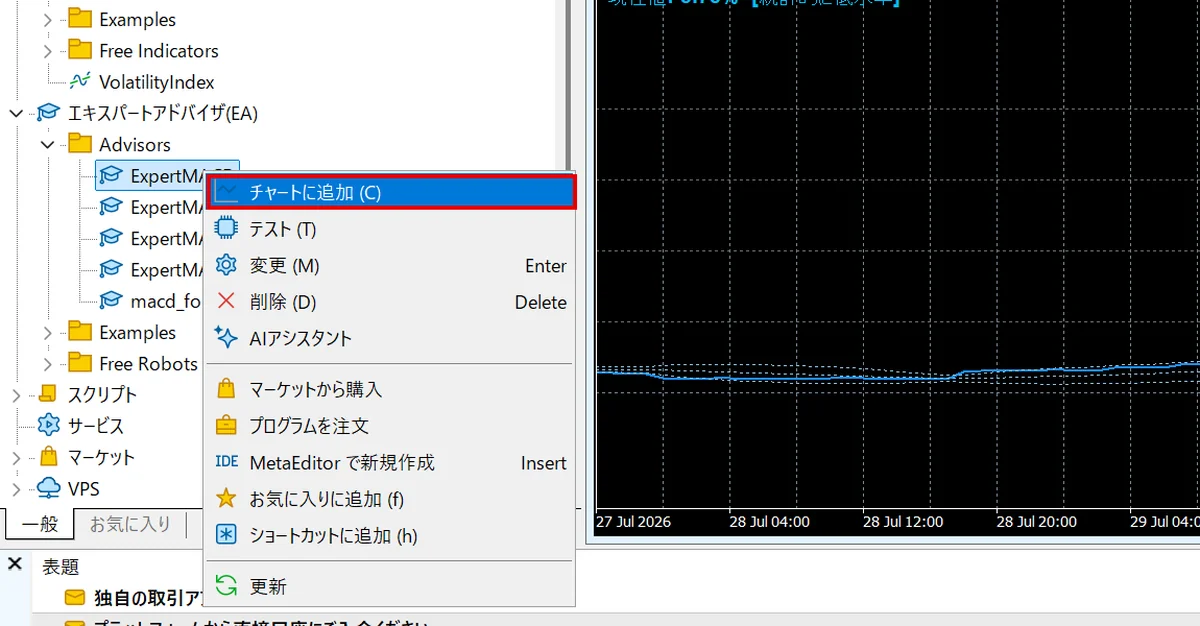
① Open the chart of the symbol you want the EA to run on, right-click the installed EA under “Expert Advisors” in the Navigator, and select “Attach to a chart.” You can also add it by double-clicking or dragging and dropping.
② When the settings dialog opens, check “Allow Algo Trading” in the “Common” tab. If this is unchecked, the EA will only sit on the chart and cannot place orders, so be sure to check it.
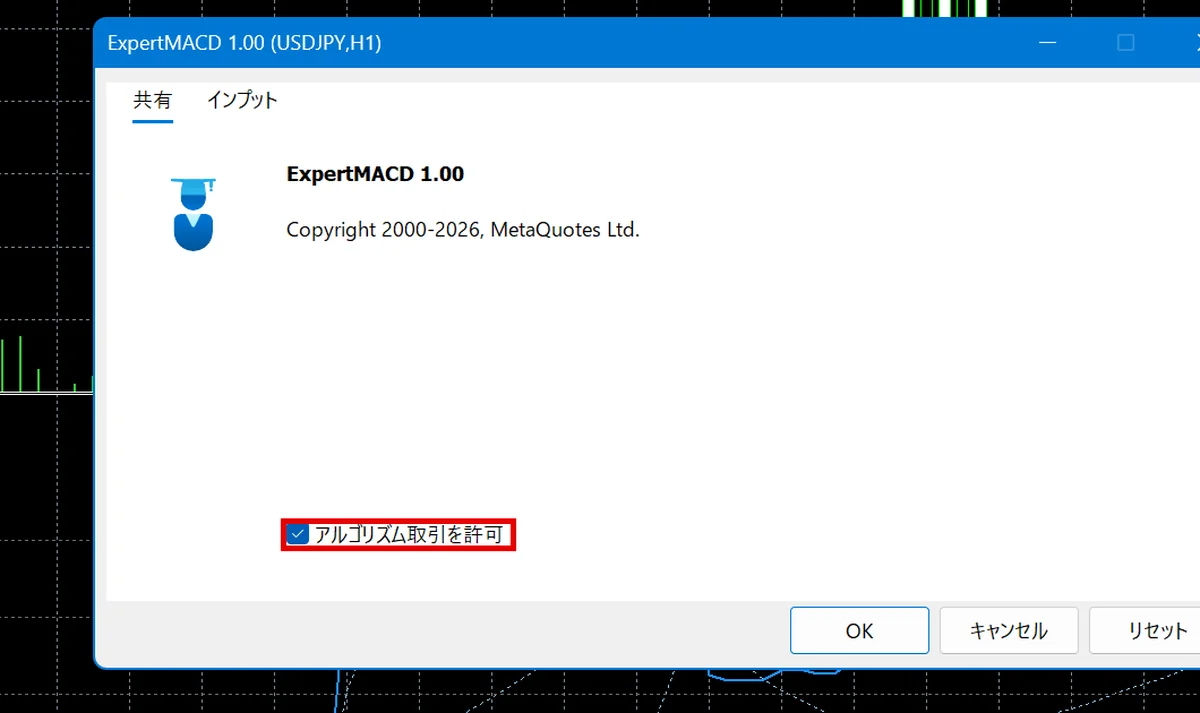
In the “Inputs” tab, set values such as lot size, stop loss, and take profit. If the EA’s manual specifies recommended values, match them. When you finish, click “OK.”
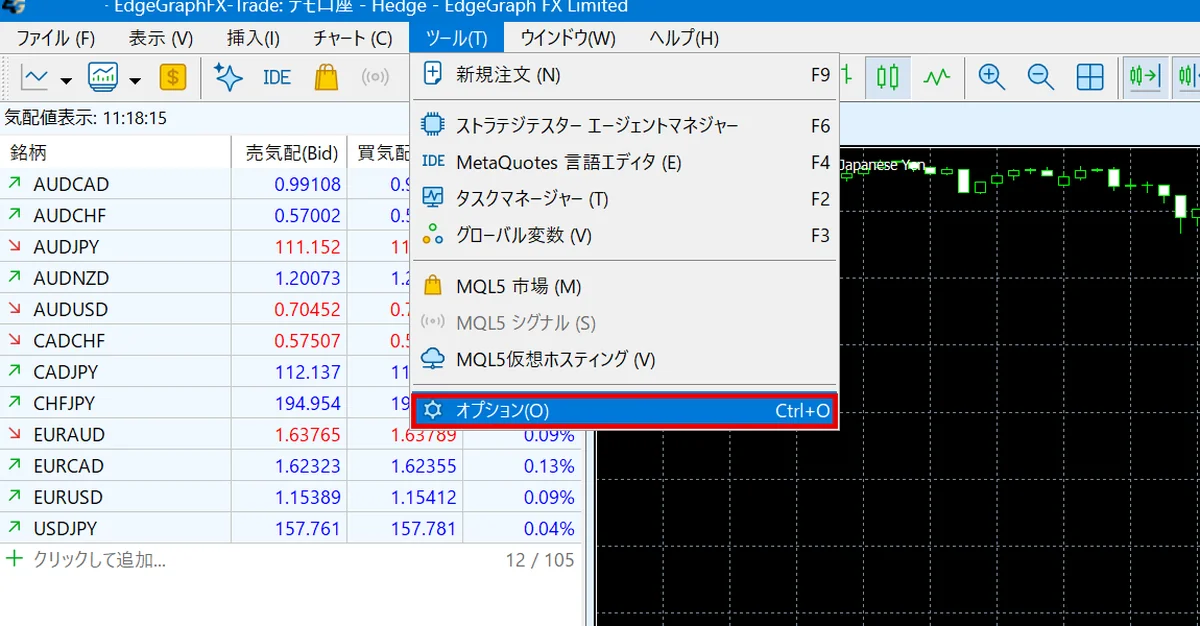
③ The permission is also required for MT5 as a whole. Select “Options” from “Tools.”
④ Also check “Allow Algo Trading” in the “Expert Advisors” tab. If the EA uses a DLL, also check “Allow DLL imports.”
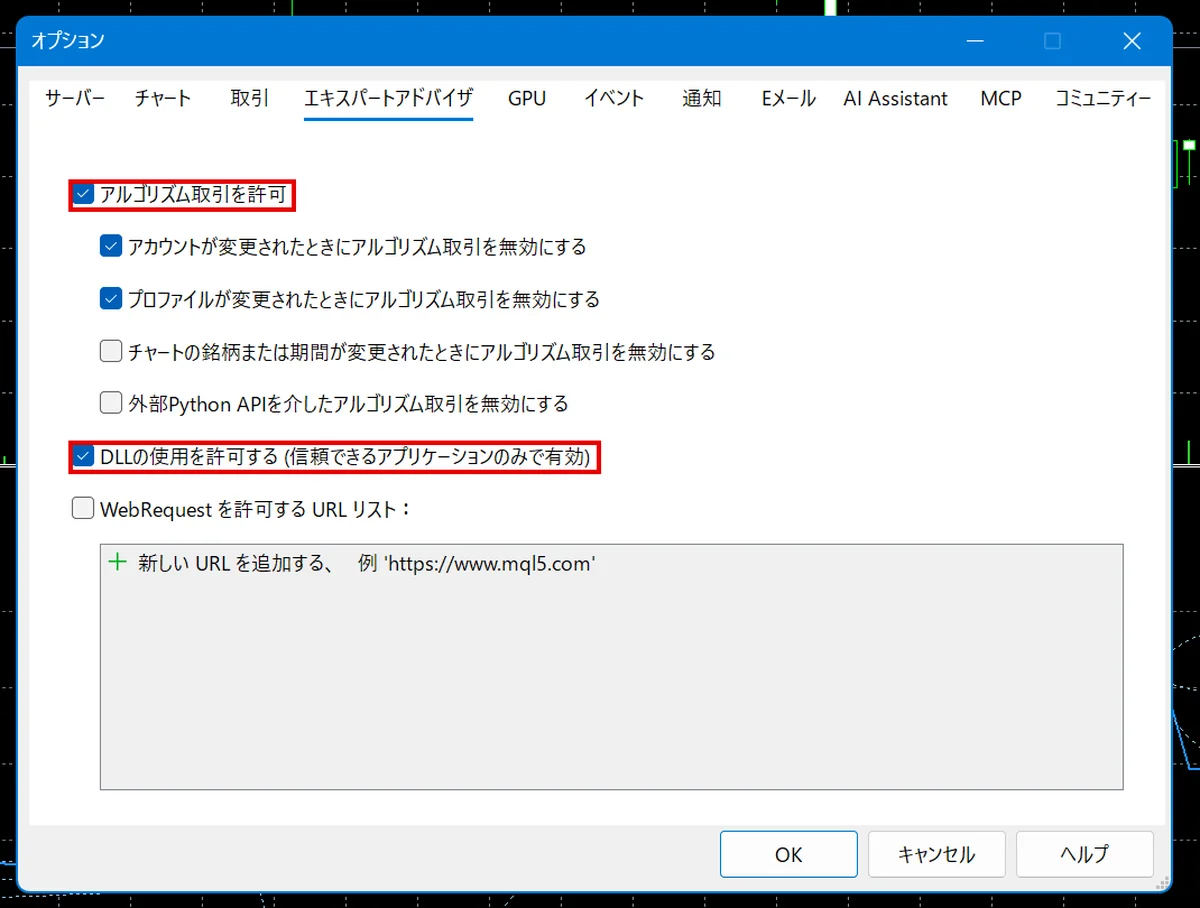
If either of these two settings is unchecked, the EA will not run.
Step 3: Check That the EA Is Running
Click the “Algo Trading” button in the toolbar to turn it on.
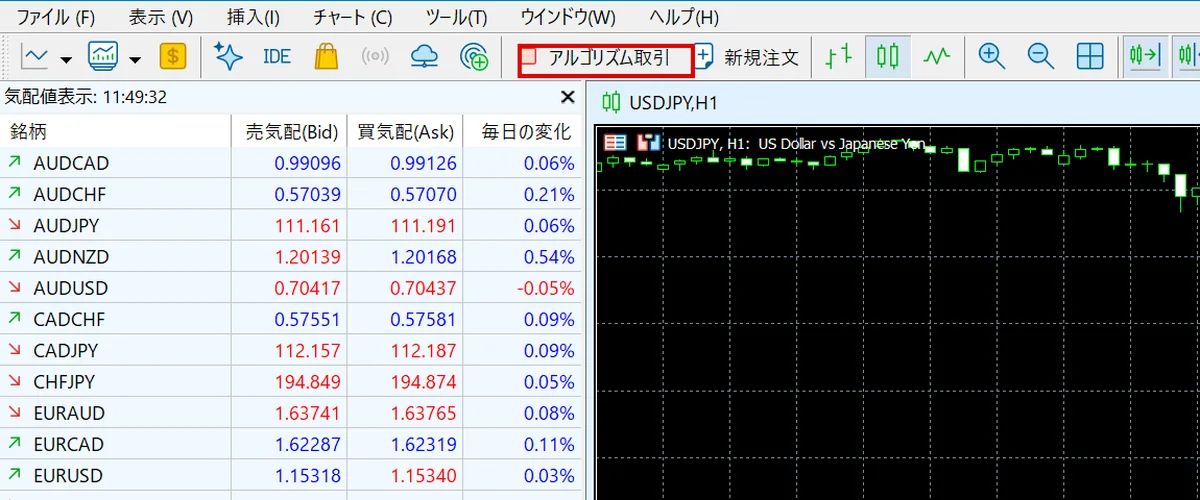
When the EA’s name and a running icon appear at the top right of the chart, the setup is complete.
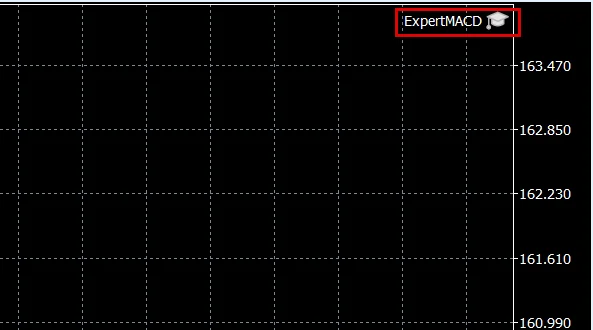
To stop the EA, click “Algo Trading” in the toolbar to turn it off. Stopping the EA does not close open positions, so if any remain, close them manually.
Only one EA can be attached to each chart. To run multiple EAs, open as many charts as there are EAs and attach them one by one.
What to Do When the EA Doesn’t Run
If you’ve installed the EA but it isn’t placing orders, check the table below for the cause.
Quick reference: causes of an EA not running and how to fix them
| Symptom | Common cause | Fix |
|---|---|---|
| It doesn’t appear in the Navigator list | It isn’t saved in MQL5 > Experts, or MT5 hasn’t been restarted | Move it to the correct folder and restart MT5 |
| Added to the chart, but the icon stays stopped | Algo Trading in the toolbar is off | Click Algo Trading in the toolbar to turn it on |
| Algo Trading is on, but no orders are placed | “Allow Algo Trading” is not checked in the EA’s “Common” tab | Open the EA’s settings on the chart and check it |
| Can’t log in to MT5 | Using the My Page password | Log in again with the trading password from the account opening completion email |
| The EA stopped when I closed the chart | An EA runs per chart it was added to | Keep the chart the EA was added to open |
If it still doesn’t place orders, open the “Experts” tab in the “Toolbox” at the bottom of MT5 to see the log the EA has output.
Want to try a tool that counts trend waves automatically? Check out this article!

FAQ
Q1. Does the EA keep running if I close MT5?
No, it doesn’t. An EA runs only while MT5 is running. If you shut down the PC or it goes to sleep, the EA stops at that point.
Q2. Can EA files for MT4 be used on MT5?
No, they can’t. An MT4 .ex4 file does not run on MT5, so prepare an MT5 .ex5 file. A .mq5 file is a source code file and needs to be compiled before MT5 can load it.
Q3. Is it OK to use a newly installed EA on a live account right away?
We recommend trying it on a demo account first. You can’t know about parameter entry mistakes or whether orders are placed as intended until you actually run it. With a demo account, you can check how it behaves without using real funds.
Summary
Installing an EA on MT5 takes 3 steps: pasting the file, adding it to a chart and setting permissions, and confirming it is running.
- The paste location is MQL5 > Experts, separate from the indicator folder
- Allow algorithmic trading in 2 places: for the individual EA and for MT5 as a whole
- Log in with your trading password, not your My Page password
Once it’s installed, start by checking how the EA behaves on a demo account.
Want to display signals with an indicator instead of an EA? Check out this article!