How to Place and Close Orders in MT5 | Limit, Stop, and Partial Closing Explained on the PC Version
You have logged in to MT5, but have you frozen up as soon as you opened the order screen? What to enter in the volume field, whether to choose a limit or a stop order, which button closes a position: your first trade brings one question after another.
This article explains how to place and close orders in MT5 using real screens from the PC version. Along with setting stop loss and take profit, partial closing, and reading your trade history, it also covers the lot sizes and stop out conditions worth knowing when you place orders with an EdgeGraph FX account.
Note that this article does not cover how to download and log in to MT5. If you have not installed it yet, you can find the steps in the article below.
Table of Contents
- Order Types in MT5: Market, Limit, and Stop
- Check Your Lot Size and Margin Before Ordering
- How to Place Orders in MT5 for PC
- Placing Orders in MT5 on a Smartphone
- Setting and Changing Stop Loss and Take Profit (SL/TP)
- How to Close Positions in MT5: Full, Partial, and Bulk Closing
- 4 Situations in Which a Position Is Closed
- How to Read Your Trade History in MT5
- FAQ on Placing and Closing Orders in MT5
- Summary
Order Types in MT5: Market, Limit, and Stop
Orders in MT5 are divided into "market orders," which buy or sell immediately at the current price, and "limit orders" and "stop orders," which wait at a price you specify.
A market order is executed at the market price at the moment you press the order button. Use it when you want to open a position right away.
A limit order specifies a price that is more favorable than the current one. For example, if USD/JPY is currently at ¥150.00 and you want to buy if it falls to ¥149.50, you use a "buy limit."
A stop order specifies a price in the less favorable direction from the current one. If you want to buy because you expect the rise to continue once the price breaks above ¥150.50, that is a "buy stop."
In MT5, limit and stop orders each come in buy and sell versions, and adding the "stop limit," which combines a stop and a limit, gives 6 types in total.
Types of limit and stop orders available in MT5 and where to place the price
| Order type | Where to place the price | When to use it |
|---|---|---|
| Buy Limit | Below the current price | You want to buy after the price falls |
| Sell Limit | Above the current price | You want to sell after the price rises |
| Buy Stop | Above the current price | You want to buy if the price breaks above a high |
| Sell Stop | Below the current price | You want to sell if the price breaks below a low |
| Buy Stop Limit | Above the current price | You want to buy on a pullback after an upside breakout |
| Sell Stop Limit | Below the current price | You want to sell on a rebound after a downside breakout |
A stop limit places a limit order at the moment the price reaches the level you specify. Use it when you want to avoid being filled at an unfavorable price if the price suddenly gaps.
You can also set a "Stop Loss" (「決済逆指値」) and a "Take Profit" (「決済指値」) at the same time as a new order. The Stop Loss is the order that cuts your loss (S/L), and the Take Profit is the order that locks in your profit (T/P).
Check Your Lot Size and Margin Before Ordering
On the MT5 order screen, you enter the trade size in lots in the "Volume" (「数量」) field. How many units of currency 1 lot represents depends on the account type.
Units of currency in 1 lot and in the minimum 0.01 lot by EdgeGraph FX account type (FX currency pairs)
| Account type | 1 lot | 0.01 lot |
|---|---|---|
| Micro account | 1,000 units | 10 units |
| Standard account | 100,000 units | 1,000 units |
| Pro account | 100,000 units | 1,000 units |
At EdgeGraph FX, a single order can be from 0.01 lot to 100 lots on every account type. Across the whole account, you can hold up to 100 lots and 100 positions in total.
The margin required for an order is calculated as "exchange rate × trade volume ÷ leverage." For example, buying 0.1 lot (10,000 units of currency) on a Standard account when USD/JPY is at ¥150 requires ¥150 × 10,000 units ÷ 1,000x = ¥1,500.
FX currency pairs at EdgeGraph FX have a maximum leverage of 1,000x, but leverage may be restricted depending on trading activity or market conditions.
For gold and stock indices, the quantity in 1 lot differs from currency pairs. Right-click the symbol in the MT5 Market Watch and check the contract size under "Specification" (「仕様」) before ordering.
If you want to calculate how many lots you can open on gold, check out the article below!
How to Place Orders in MT5 for PC
On the PC version, orders are placed from the "New Order" (「新規注文」) window. To open it, right-click the symbol in Market Watch and select "New Order" (「新規注文」), or click "New Order" (「新規注文」) on the toolbar at the top of the screen.
The left side of the window lists 3 options: "Countdown order" (「カウントダウン注文」), "Limit order" (「Limit 注文」), and "Stop order" (「Stop 注文」). Choose "Countdown order" (「カウントダウン注文」) for a market order, "Limit order" (「Limit 注文」) for a limit order, and "Stop order" (「Stop 注文」) for a stop order.
Steps to Place a Market Order
- Open the "New Order" (「新規注文」) window and select "Countdown order" (「カウントダウン注文」) on the left
- Check the "Symbol" (「銘柄」) and enter the number of lots in "Volume" (「数量」)
- To set stop loss and take profit at the same time, enter prices in "Stop Loss" (「決済逆指値」) and "Take Profit" (「決済指値」)
- Click "Sell at Market" (「成行売り(Sell)」) or "Buy at Market" (「成行買い(Buy)」)
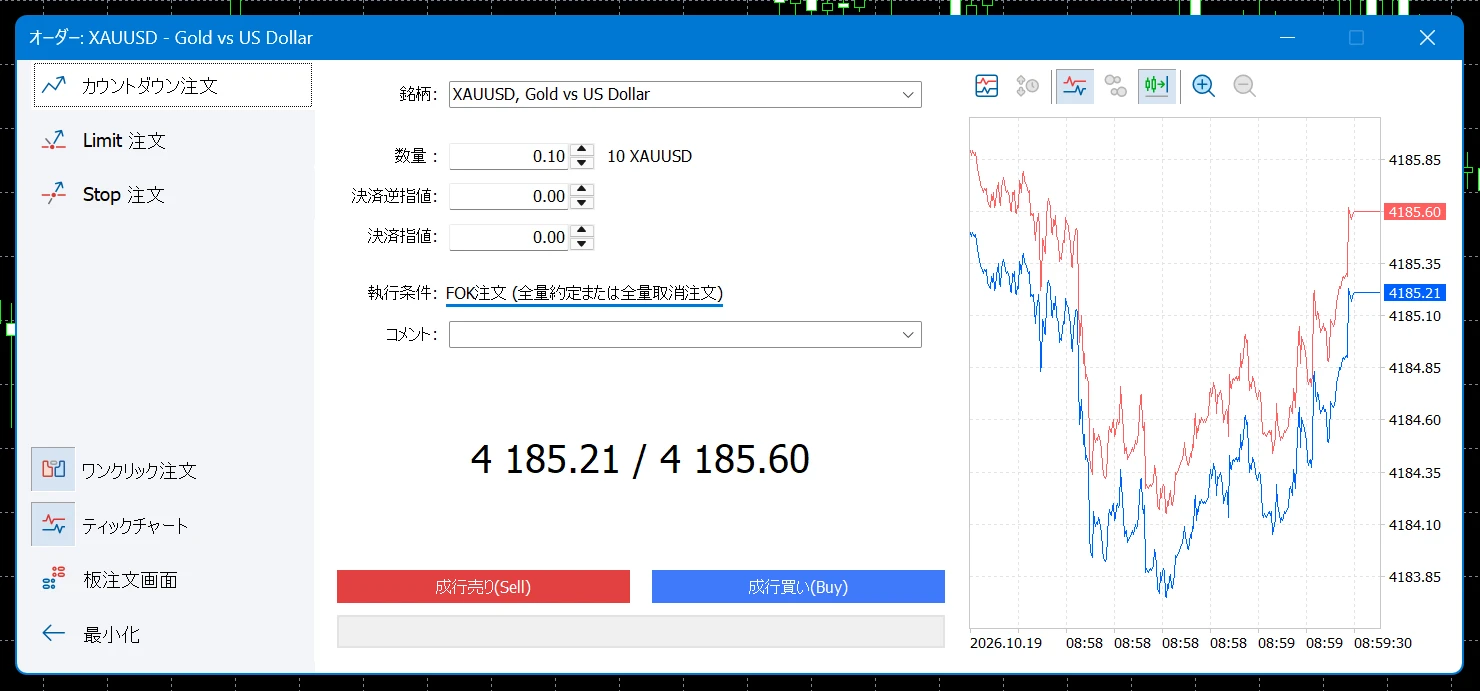
To the right of "Volume" (「数量」), the window shows how much trade volume the lots you entered represent for that symbol. Before ordering, use it to check that you have not got the number of digits wrong.
Once the order is executed, the position appears in the "Trade" (「取引」) tab of the Toolbox at the bottom of the screen. The same tab also shows the balance, equity, required margin, free margin, and margin level.
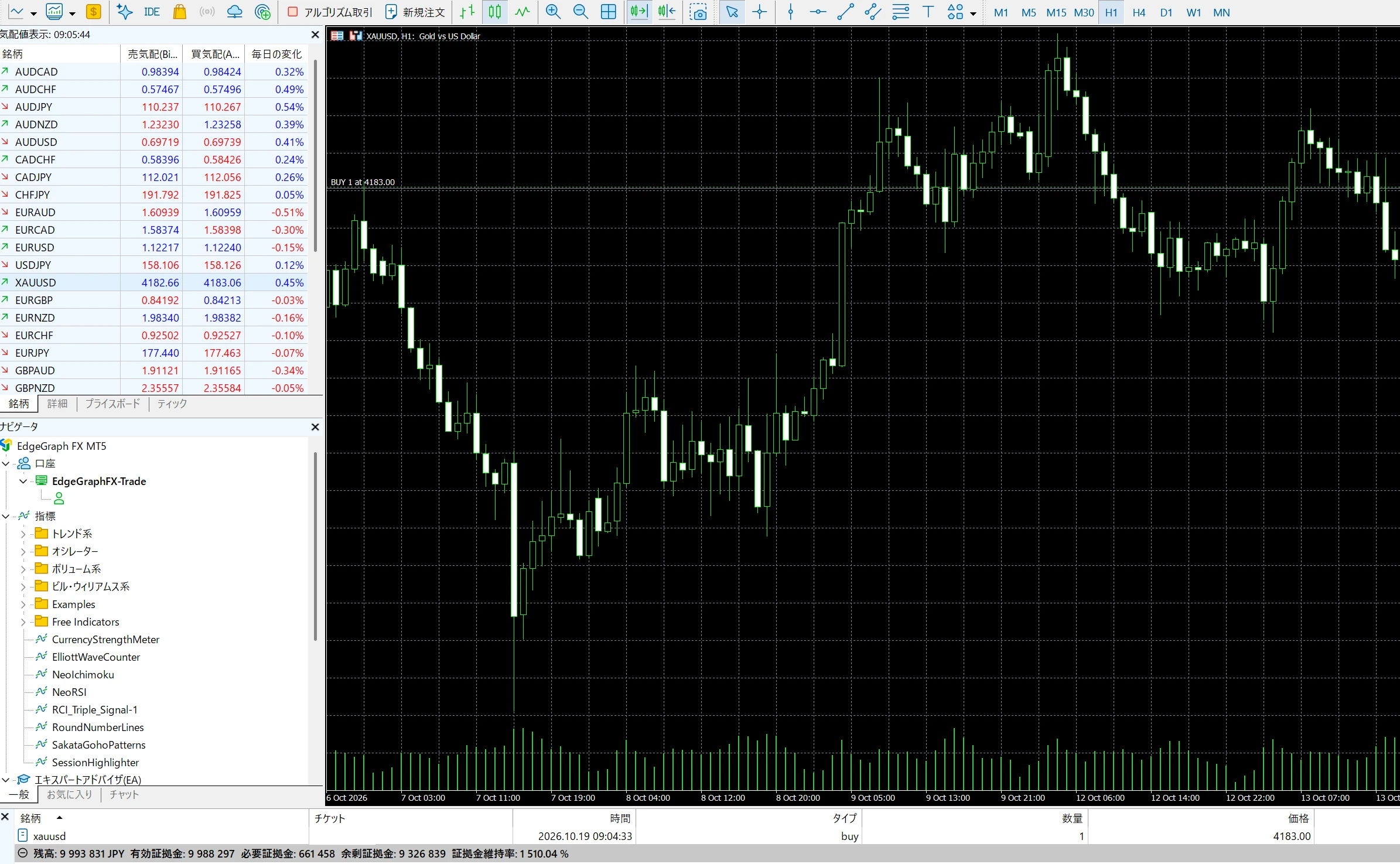
If the stop loss or take profit is too close to the current price, or is on the wrong side, such as a stop loss for a buy order placed above the current price, a warning appears and the order is not accepted.
Steps to Place a Limit or Stop Order
- Open the "New Order" (「新規注文」) window and select "Limit order" (「Limit 注文」) for a limit order or "Stop order" (「Stop 注文」) for a stop order
- Enter the "Volume" (「数量」) and "Price" (「価格」)
- If needed, enter "Stop Loss" (「決済逆指値」) and "Take Profit" (「決済指値」)
- Choose the "Expiration" (「期限」)
- Click "Buy" for a buy order or "Sell" for a sell order
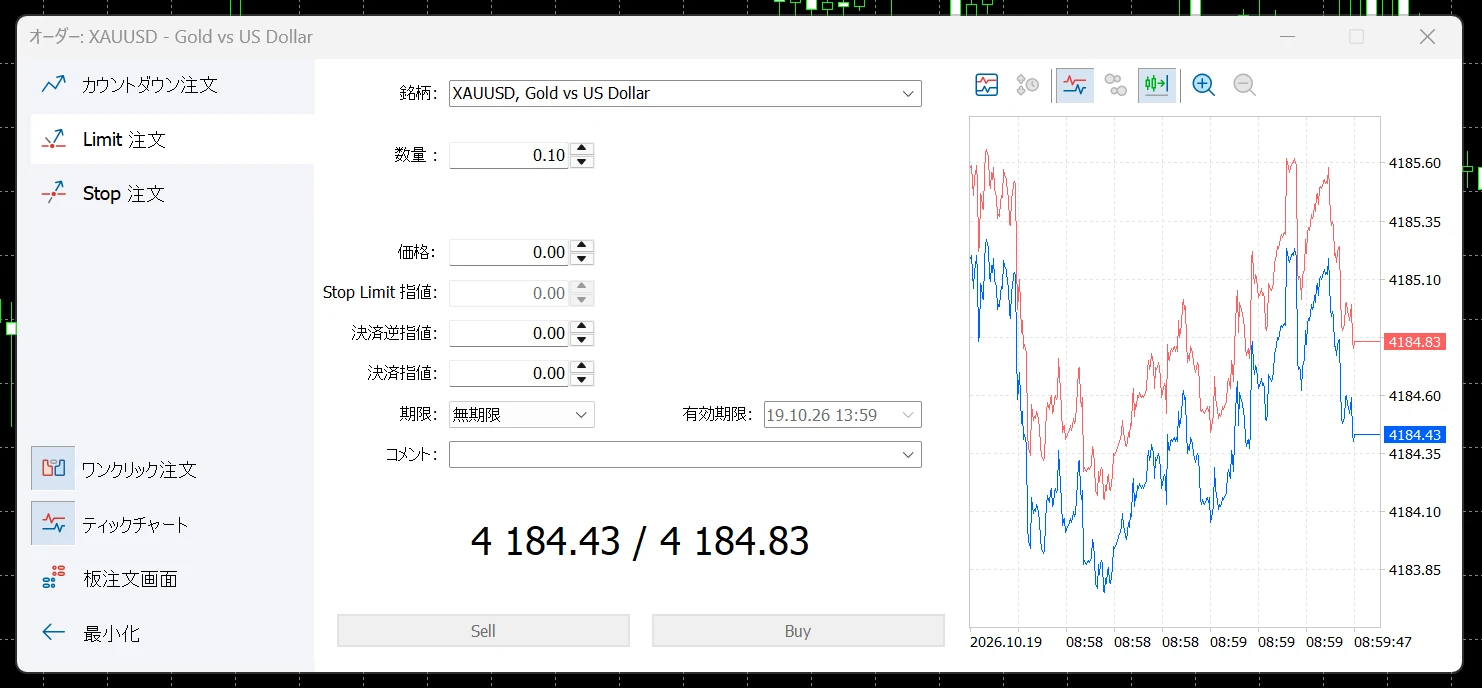
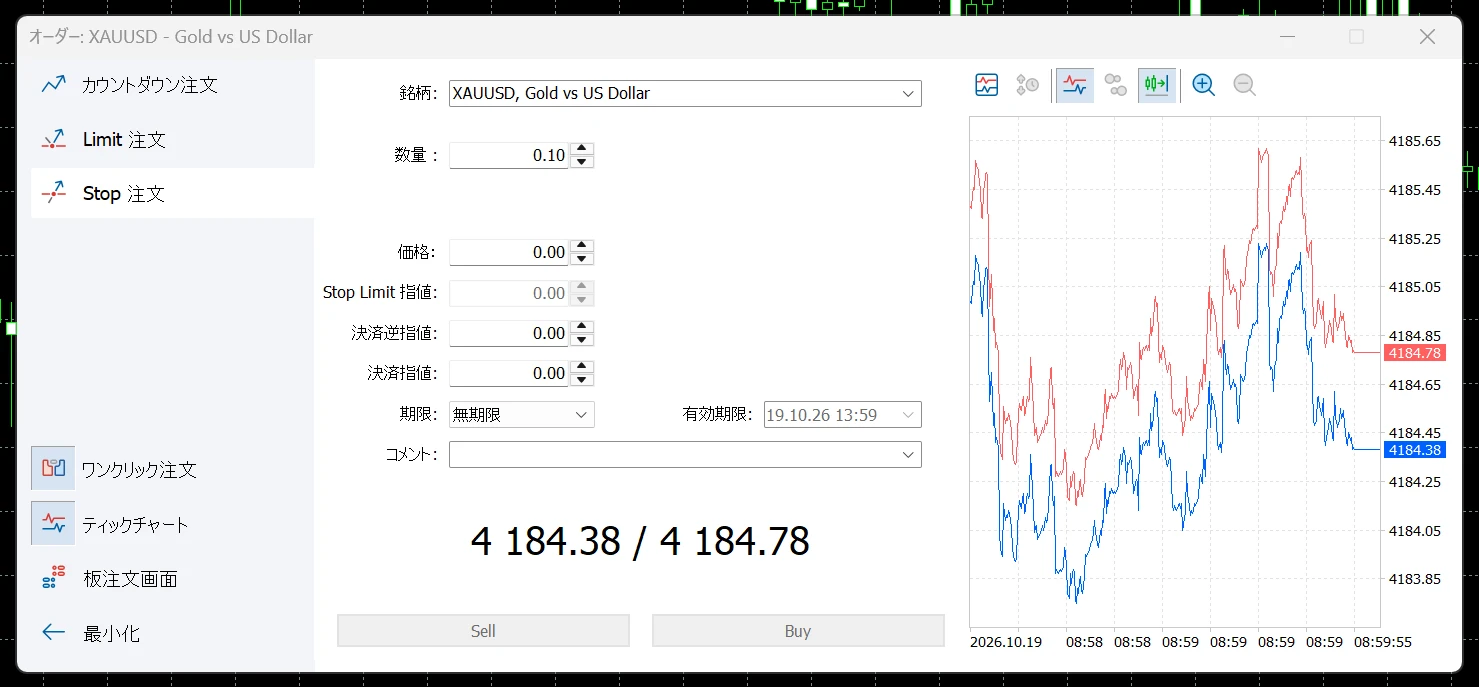
If you leave "Expiration" (「期限」) at the default "No expiration" (「無期限」), the order stays until you cancel it manually. To give the order an expiry, switch it from the drop-down menu.
Limit and stop orders you have placed appear in the "Trade" (「取引」) tab of the Toolbox, and a line is drawn on the chart at the order price.
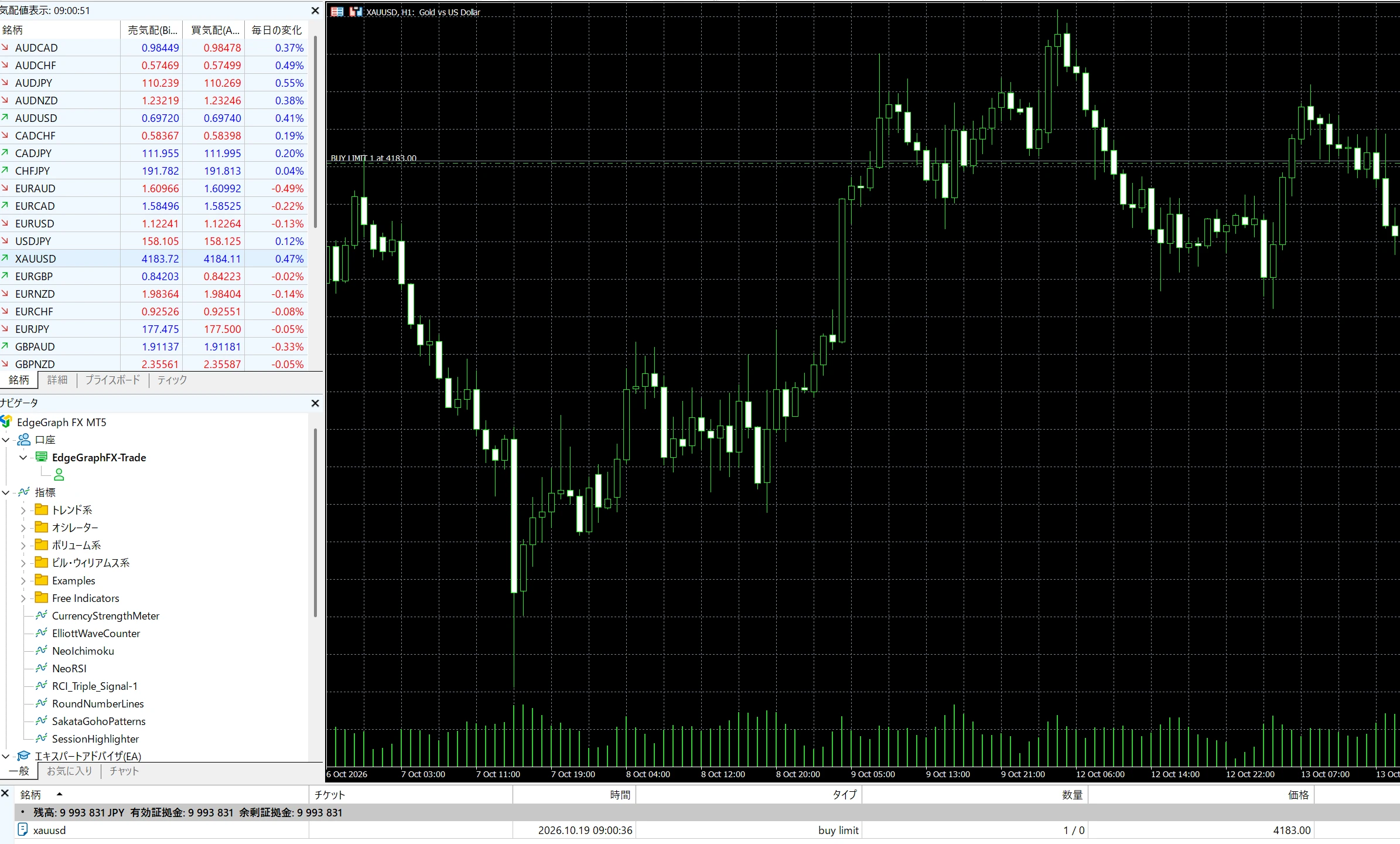
How to Order from the Chart
Right-click on the chart near the price where you want to order, and the top of the menu shows the limit and stop orders you can place at that price. The image below is an example of right-clicking above the current price, showing "Sell Limit 0.1" (a sell limit for 0.1 lot) and the price.
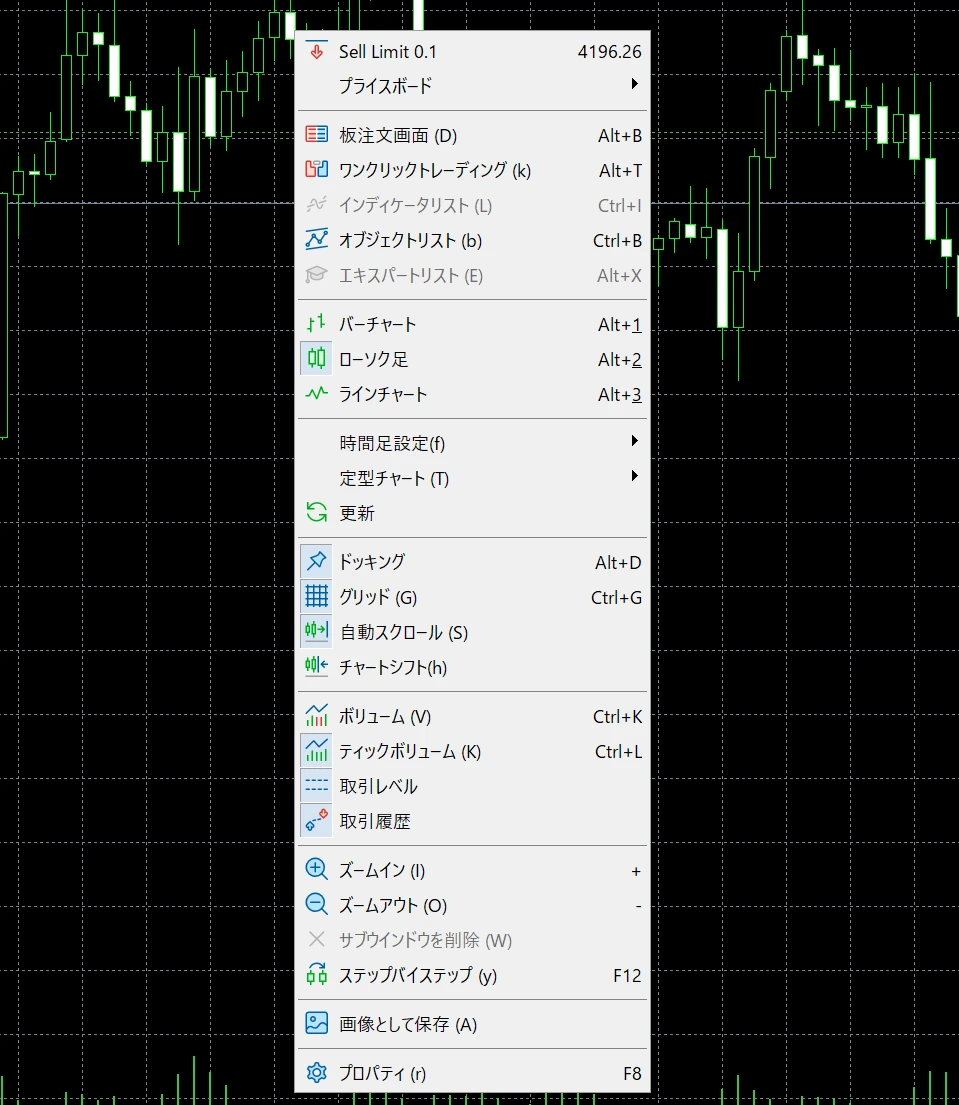
From this item, you can place an order with the volume and price shown. Before selecting it, check that the volume and price are what you intended.
Placing Orders in MT5 on a Smartphone
In the MT5 app for iPhone and Android as well, the items you decide when ordering are the same as on the PC version. Decide the symbol and volume (number of lots), choose whether to place a market, limit, or stop order, enter stop loss and take profit prices if needed, and then place the order.
Button names and menu positions differ from the PC version. Even on a smartphone, the items you enter and the order types are the same as in the PC explanation in this article, so if you get stuck, compare them one by one.
Setting and Changing Stop Loss and Take Profit (SL/TP)
Even after you open a position, you can add, change, or delete stop loss and take profit orders.
Changing Them on PC
In the "Trade" (「取引」) tab of the Toolbox, right-click the position and select "Modify or Delete" (「変更または削除」). Enter new prices in "Stop Loss" (「決済逆指値」) and "Take Profit" (「決済指値」), then click "Modify" (「変更」).
You can also drag the stop loss and take profit lines shown on the chart to move them. If the lines do not appear or cannot be moved, check whether "Show positions and orders" (「建玉と注文を表示」) and "Enable order changes by dragging" (「ドラッグによる注文変更を有効にする」) are turned on in the MT5 settings.
To change the price of a limit or stop order or to cancel it, right-click the order and select "Modify or Delete" (「変更または削除」).
Stop Loss and Take Profit Stay Active Even When MT5 Is Closed
Stop loss and take profit orders are stored on the broker's server, not on the PC or smartphone where MT5 is installed. So even if the app is closed or your connection drops, the position is closed when the price reaches the level you set.
In places with a weak mobile signal, or when your PC's connection drops, you cannot place new orders or closing orders from MT5. Setting a stop loss on every trade keeps losses from growing even in situations like these.
On the other hand, a "trailing stop," which automatically moves the stop loss level along with the price, runs on the PC version of MT5, not on the server. If you shut down your PC or close MT5, the trailing stop stops working.
How to Close Positions in MT5: Full, Partial, and Bulk Closing
The basic way to close in MT5 is to select an open position and run "Close Position" (「ポジション決済」). Changing the volume lets you close only part of it, and there is also a function for closing several positions at once.
Closing a Whole Position
On PC, double-click the position in the "Trade" (「取引」) tab of the Toolbox, or right-click it and select "Close Position" (「ポジション決済」). Click the close button in the window that appears, and the position is closed at market.
You can also close from the "×" at the right end of the position row. If One Click Trading is enabled, the position is closed on the spot without a confirmation screen, so be careful.
Closing Only Part of a Position
To close only part of a position, reduce the "Volume" (「数量」) in the closing window before closing. For example, if you set the volume to 0.4 on a 1-lot position and close, a 0.6-lot position remains.
This lets you, for example, take profit on half while the trade is in profit, then raise the stop loss on the rest to the entry price and keep holding it.
Closing Several Positions at Once
When you have many positions, "Bulk Operations" (「一括操作」) lets you close them together by group, such as all positions, only profitable positions, or only losing positions. Right-click in the "Trade" (「取引」) tab of the Toolbox and open "Bulk Operations" (「一括操作」).
To use bulk operations, you need to enable One Click Trading in the MT5 settings. Commands run immediately without a confirmation screen, so be careful not to choose the wrong one.
Also, if an error occurs partway through, some positions may remain unclosed. After running it, check that no positions are left in the "Trade" (「取引」) tab.
An Opposite Order Does Not Close a Position
At EdgeGraph FX, you can hedge, which means holding a buy and a sell of the same symbol at the same time in the same account. So if you place a new sell order of the same volume while holding a buy position, the buy is not closed; instead, 1 more position, a sell, is added.
When you want to close a position, always use "Close Position" (「ポジション決済」), not a new order.
If you already hold both a buy and a sell, selecting "Close By" in "Type" (「タイプ」) in the closing window offsets the 2 positions against each other and closes them. Closing them separately means paying the spread 2 times, but with Close By you pay it only 1 time.
4 Situations in Which a Position Is Closed
A position is not closed only when you act on it yourself.
4 situations in which positions are closed in MT5 at EdgeGraph FX
| How it is closed | When it is closed |
|---|---|
| Closing it yourself | When you run "Close Position" (「ポジション決済」) |
| Bulk closing | When you run "Bulk Operations" (「一括操作」) |
| Take profit / stop loss | When the price reaches the level you set |
| Stop out | When the margin level falls below 20% |
At EdgeGraph FX, a stop out automatically closes positions when the margin level falls below 20%, starting with the position that has the largest unrealized loss. The margin level is shown in the "Trade" (「取引」) tab at the bottom of the screen, alongside the balance and equity.
If the market moves suddenly, the stop out cannot keep up, and your account balance goes negative, negative balance protection brings the balance back to 0. However, the balance is not reset to 0 while you are holding positions.
If you want to learn more about the difference between stop out and negative balance protection, read the article below as well.
How to Read Your Trade History in MT5
Closed trades can be checked in the "History" (「口座履歴」) tab of the Toolbox at the bottom of the screen.
The view can be switched between 3 options: "Positions" (「ポジション」), "Orders" (「注文」), and "Deals" (「約定」). Choose "Positions" (「ポジション」) to see the profit or loss up to closing on 1 line, or "Orders" (「注文」) to see whether a limit or stop order was filled or canceled.
On PC, you can narrow the view by specifying a period. Trades in the specified period can also be saved as a report, which is useful when you want to see 1 year of profit and loss at once.
The times shown in the history are MT5 server time, not Japan time.
EdgeGraph FX server time is 6 hours behind Japan time during summer time (from the 2nd Sunday of March to the 1st Sunday of November) and 7 hours behind during winter time.
For example, if a time in the history during summer time reads "03:15," it is 9:15 in Japan time.
FAQ on Placing and Closing Orders in MT5
Summary
For orders in MT5, use a market order to be filled right away, and a limit or stop order to wait at a price you specify. Remember that closing is done from "Close Position" (「ポジション決済」), not with a new opposite order, and you will avoid mistakes even on an account that allows hedging.
EdgeGraph FX publishes on its official website the units of currency in 1 lot for each account type, the stop out level, and the requirement to close all positions before withdrawing. Before ordering, check the conditions for your own account.
Until you get used to the operations, it is also a good idea to run through the whole process from ordering to closing once on a demo account.