How to Install EdgeGraph FX Indicators: A Complete Guide to Adding Them to MT5
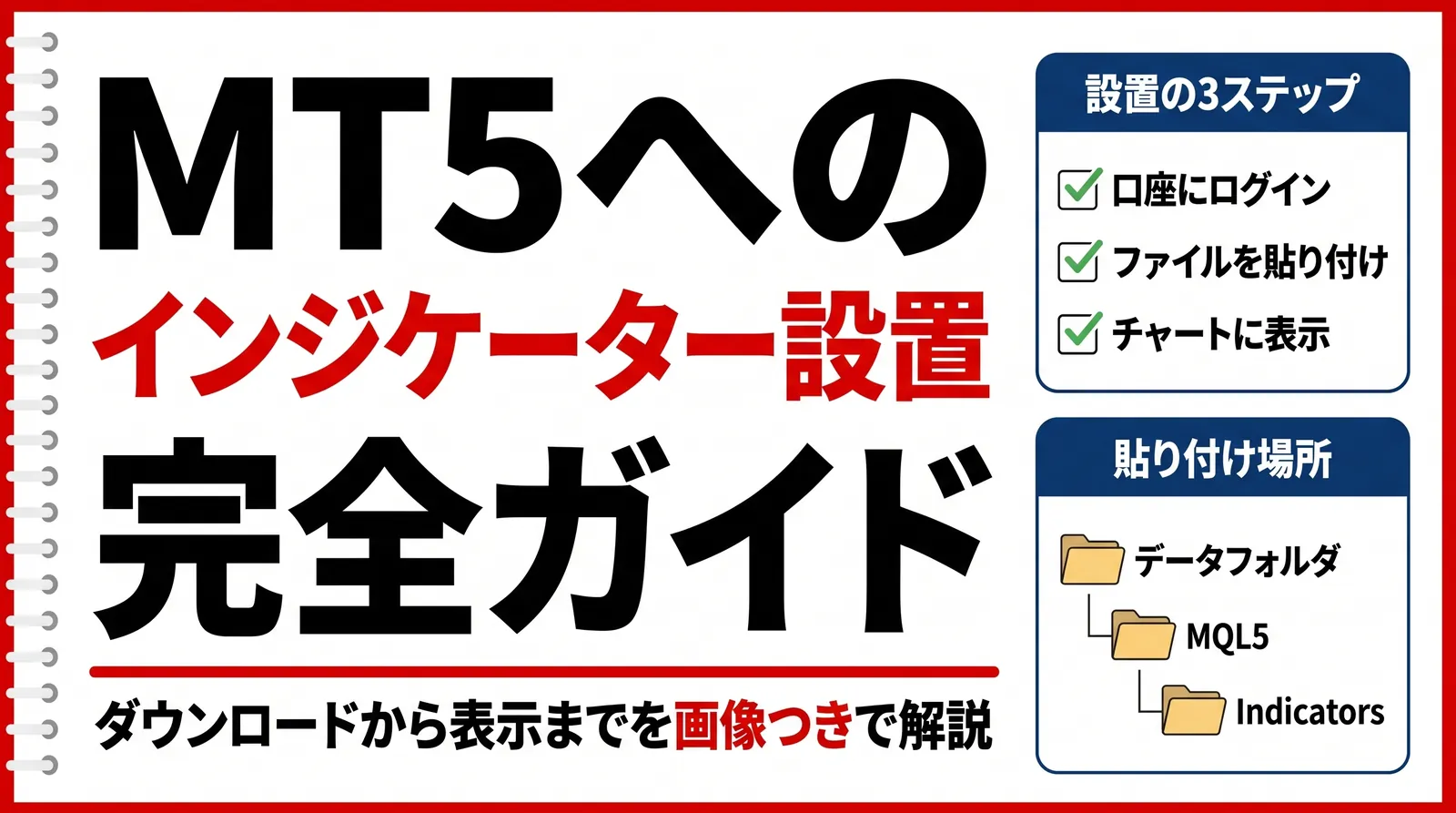
Many people want to add the indicators distributed by EdgeGraph FX to MT5 as custom indicators but don't know how to do it. In short, there are three steps.
- Step 1: Download MT5 and log in to your trading account
- Step 2: Place the indicator file in the MQL5 > Indicators folder and restart MT5
- Step 3: Open a chart and display the indicator from the Navigator
This article explains each step with images. Even if it's your first time, as long as you follow the steps in order, you can add the indicator you like to your chart in no time. We also explain what to do if it doesn't appear properly.
We distribute original indicators exclusively for EdgeGraph FX
Download the indicators here!Table of Contents
The Overall Flow of Installing Indicators with EdgeGraph FX
As explained above, the procedure for adding a custom indicator to MT5 is broadly divided into the following three steps.
- Step 1: Download MT5 and log in to your trading account
- Step 2: Place the indicator file in the MQL5 > Indicators folder and restart MT5
- Step 3: Open a chart and display the indicator from the Navigator
As long as you have MT5 and a trading account ready, you can install the indicator right away. Now let's go through each step with images.
What to Prepare Before Installing an Indicator
Before you start, prepare the following.
- An EdgeGraph FX trading account (if you haven't opened one yet, complete the account opening first)
- The account opening completion email (it lists your account number and password. You will use them to log in)
- MT5 for PC (Windows)
- The indicator file you want to install (such as RCI_Triple_Signal distributed by EdgeGraph. In general, the file format for MT5 is .ex5 or .mq5)
If you want to check the account opening steps in detail, check this article!

There is one thing to tell you first. The password for logging in to your member account and the password for logging in to your trading account are different. This is a point where people often get stuck when logging in, so we explain it in detail in Step 1.
Step 1: Download MT5 and Log In to Your Account
Download and Install MT5
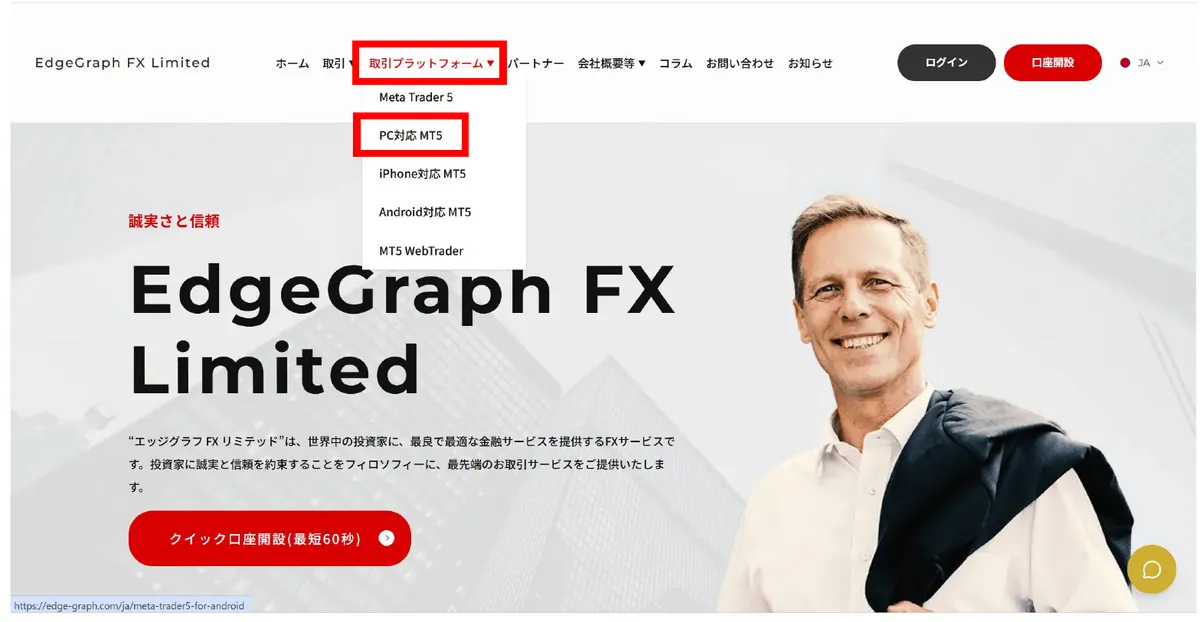
Open the EdgeGraph FX site, select "MT5 for PC" from "Trading Platforms" in the menu, and download it. Double-click the downloaded installation file to start installing MT5. When the installation is complete, MT5 starts automatically (if it doesn't, double-click the MT5 icon created on your desktop).
If you want to check in detail how to download MT5 for both PC and smartphone, check this article!
Log In to Your Trading Account on MT5
Once MT5 has started, select "Open an Account" from the "File" menu.
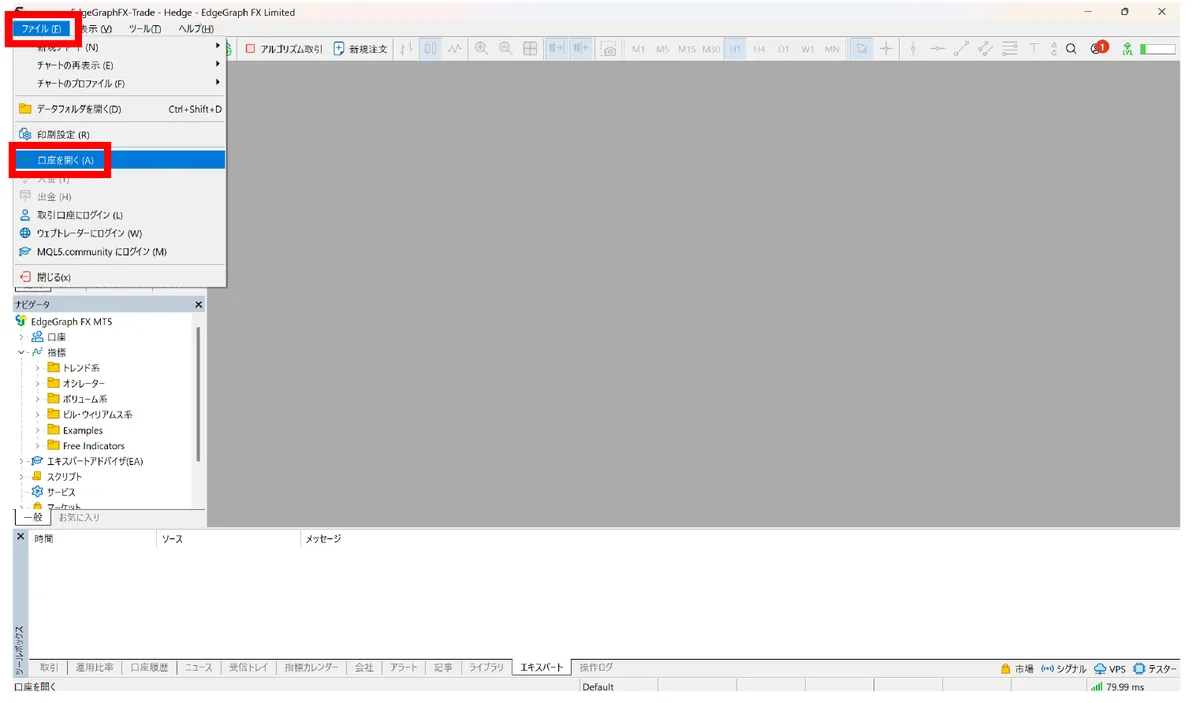
A list of companies appears, so select "EdgeGraph FX Limited" and click "Next." The screen then changes to the one for choosing how to connect your account, so select "Connect with an existing trading account." On the next screen, enter the account number (login ID) and password listed in your account opening completion email. For the server, select EdgeGraphFX-Trade.
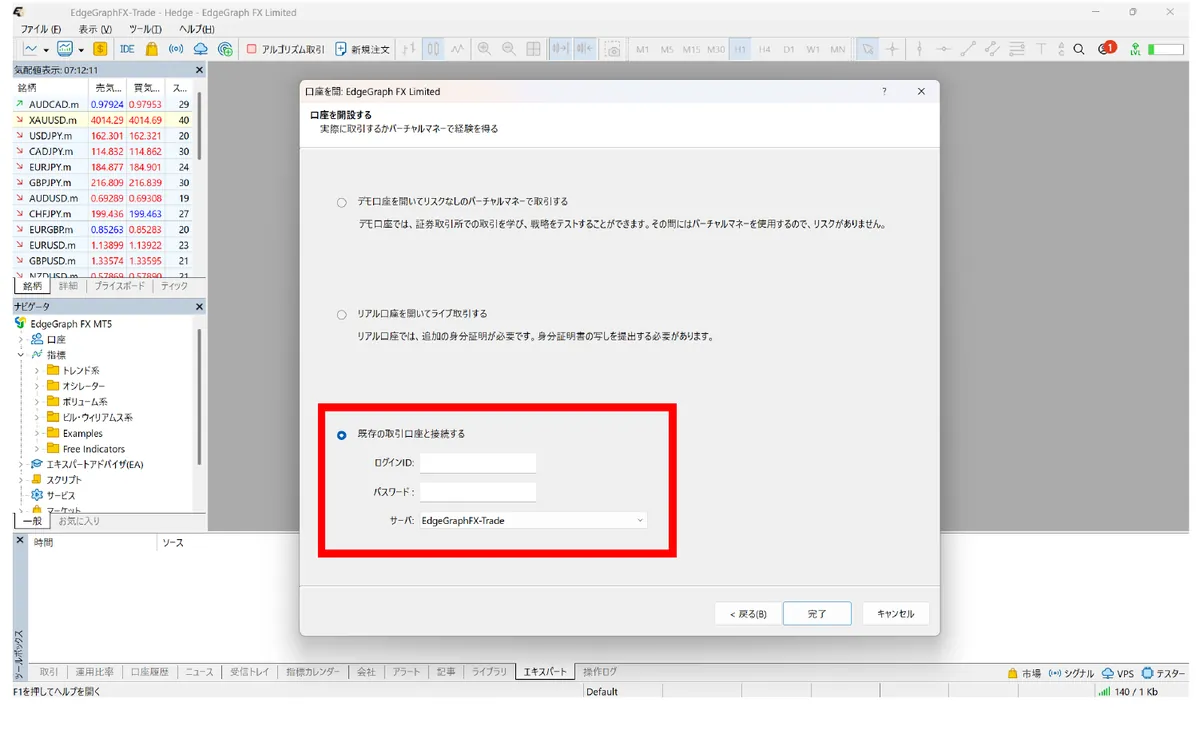
This is the first place where people get stuck. The password for your member account and the password for your trading account are separate. Entering your member password will not let you log in, so be sure to use the account number and password listed in your account opening completion email.
Step 2: Install the Indicator File in MT5
Select "Open Data Folder" from the "File" menu, and the folder opens. Open the "MQL5" folder inside it.
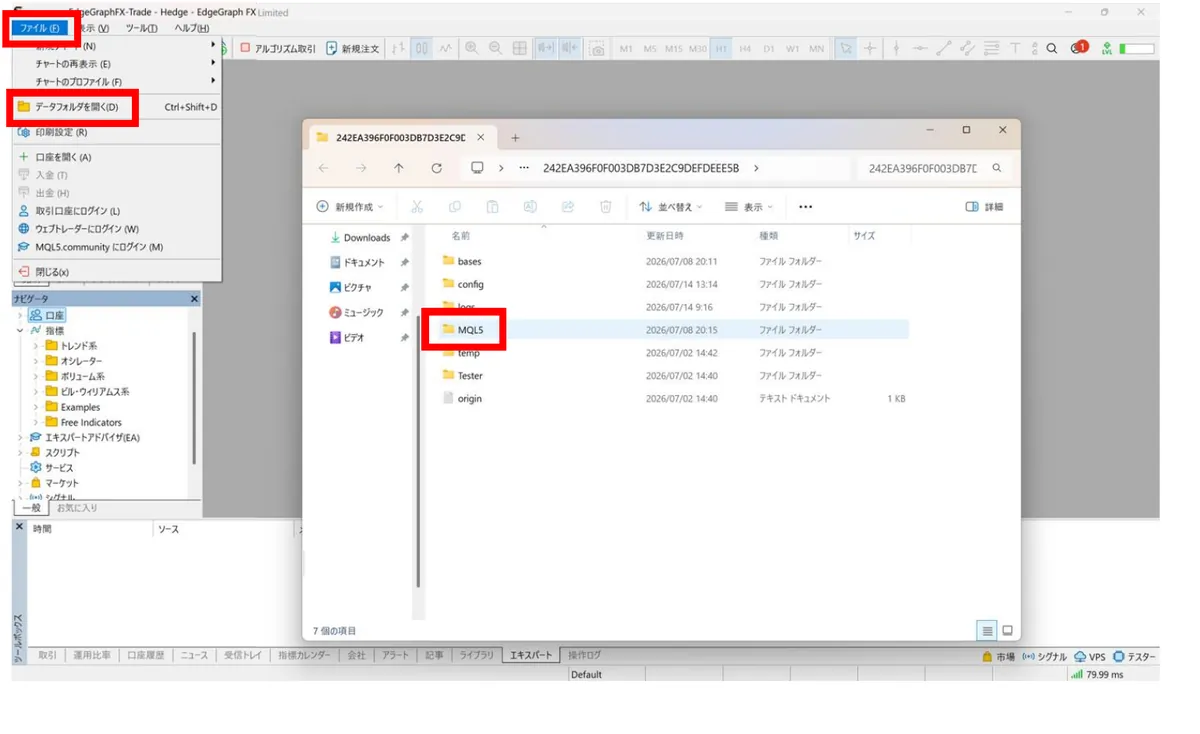
Open the "Indicators" folder inside "MQL5."
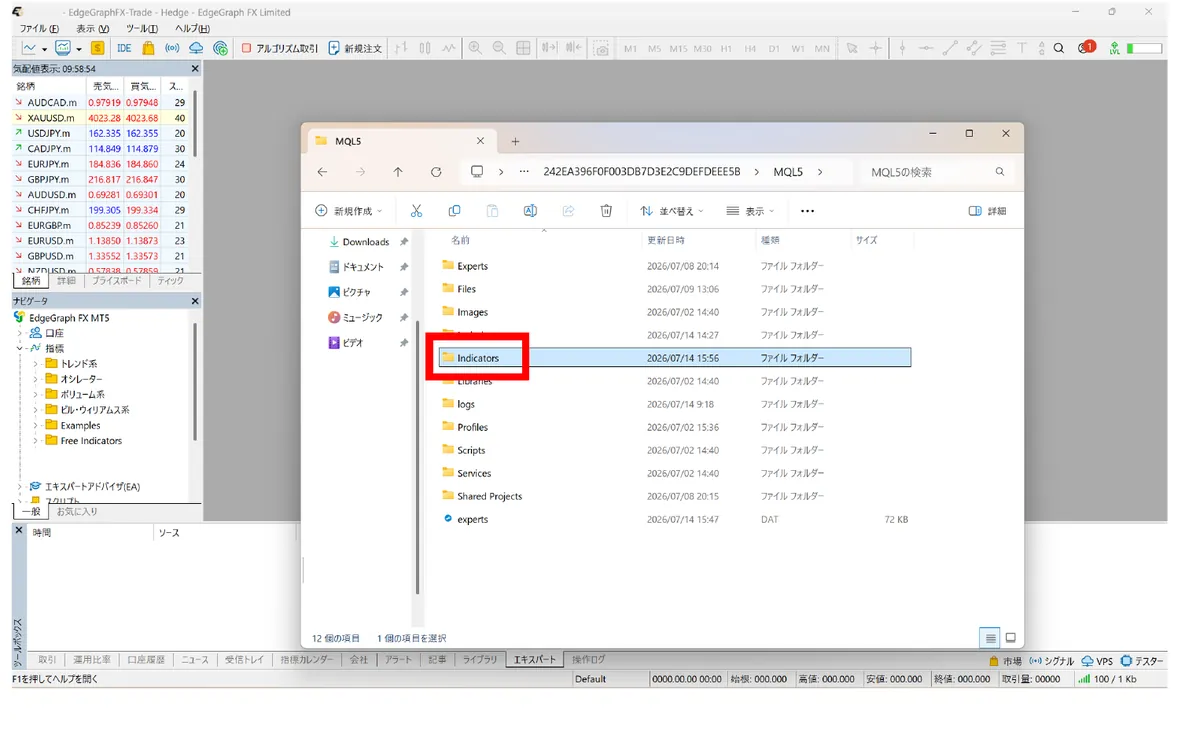
Paste the indicator file (for example, RCI_Triple_Signal) into this "Indicators" folder. After pasting, restart MT5.
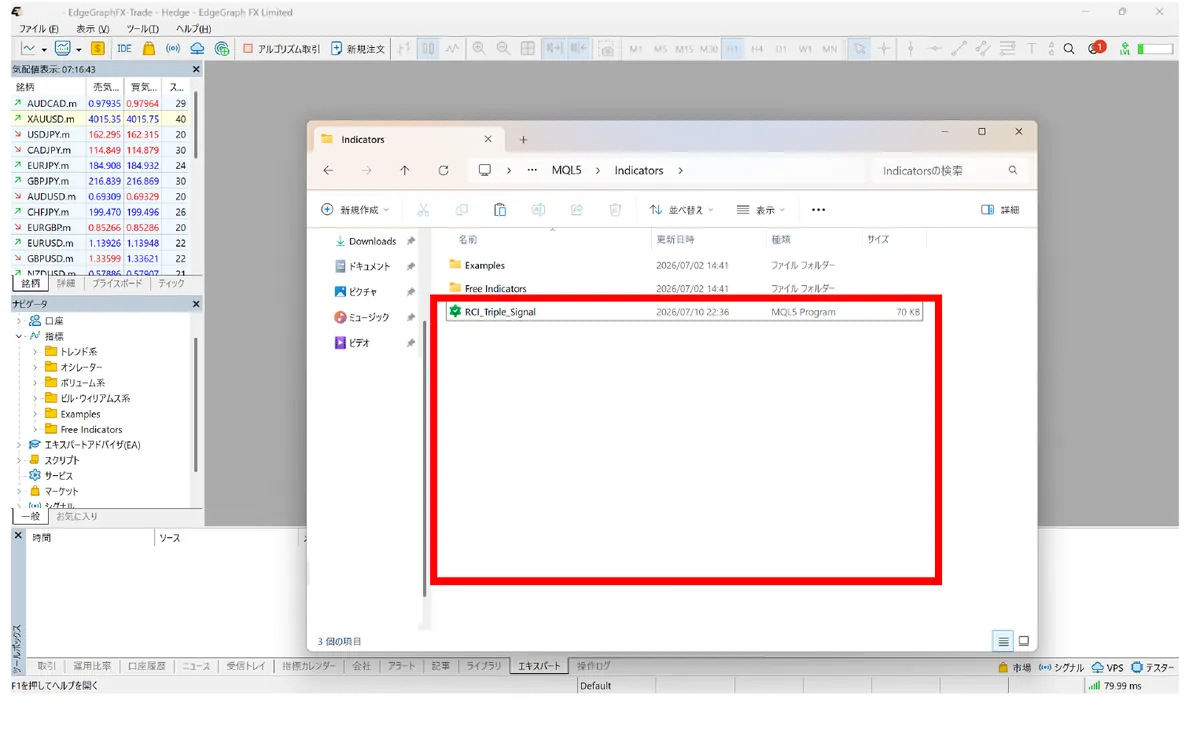
This is another place where people easily get stuck. The place you paste the file must be MQL5 > Indicators. If you put it anywhere else, it will not appear on the chart. And don't forget to restart after pasting. As long as you pay attention to the location and the restart, MT5 will recognize it as a custom indicator.
Step 3: Display the Indicator on the Chart
First, select the currency (symbol) you want to display and open its chart.
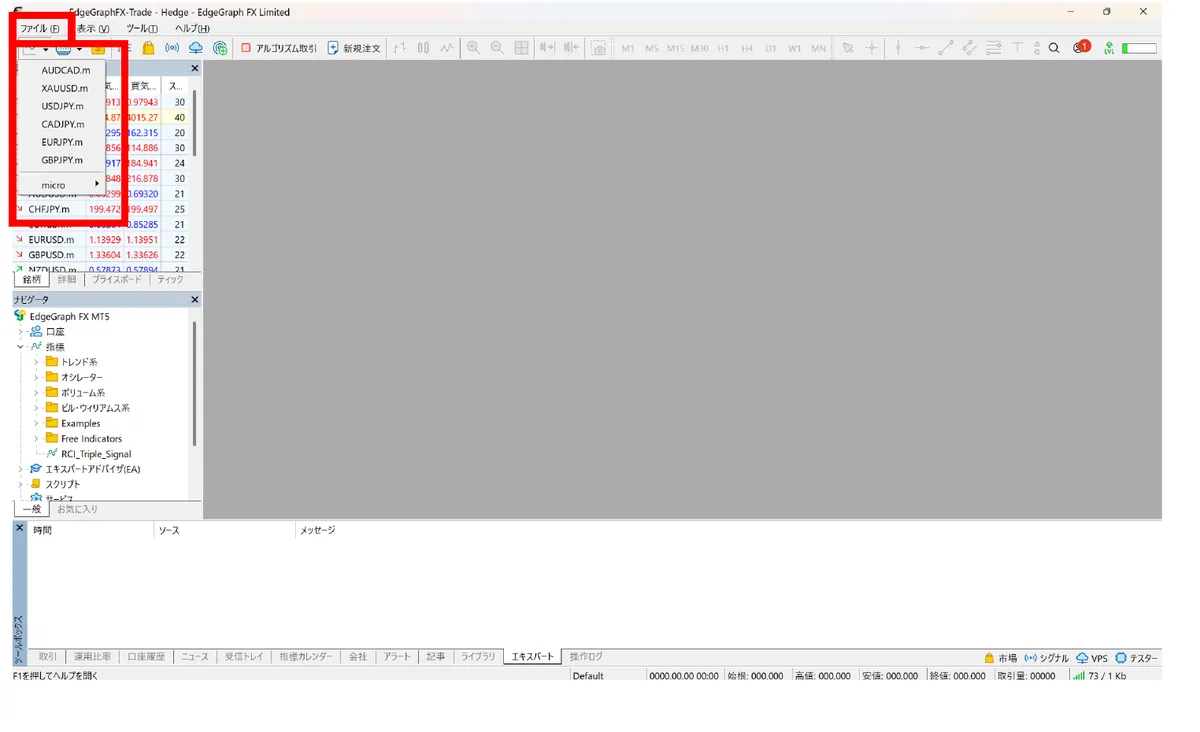
In the Navigator, under "Indicators," double-click the indicator you installed (for example, RCI_Triple_Signal).
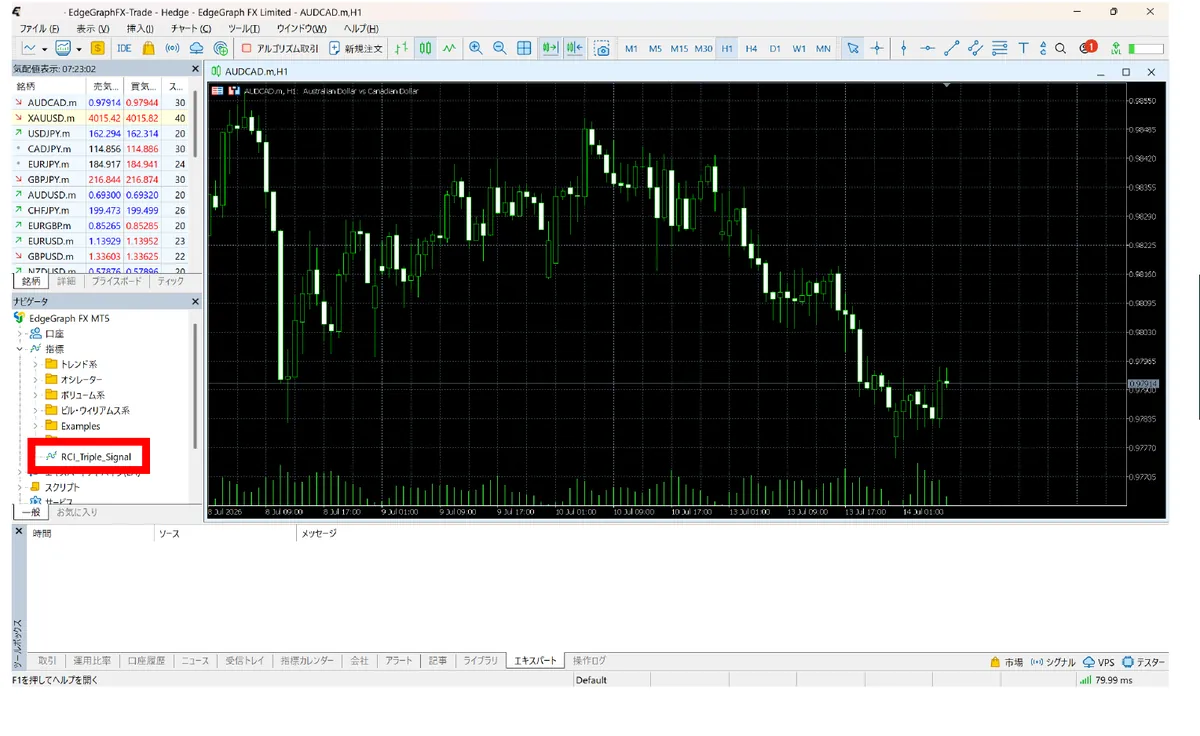
When the settings dialog opens, click "OK." If the signal arrows (blue for buy, red for sell) and the indicator panel appear on the chart, the installation is complete.
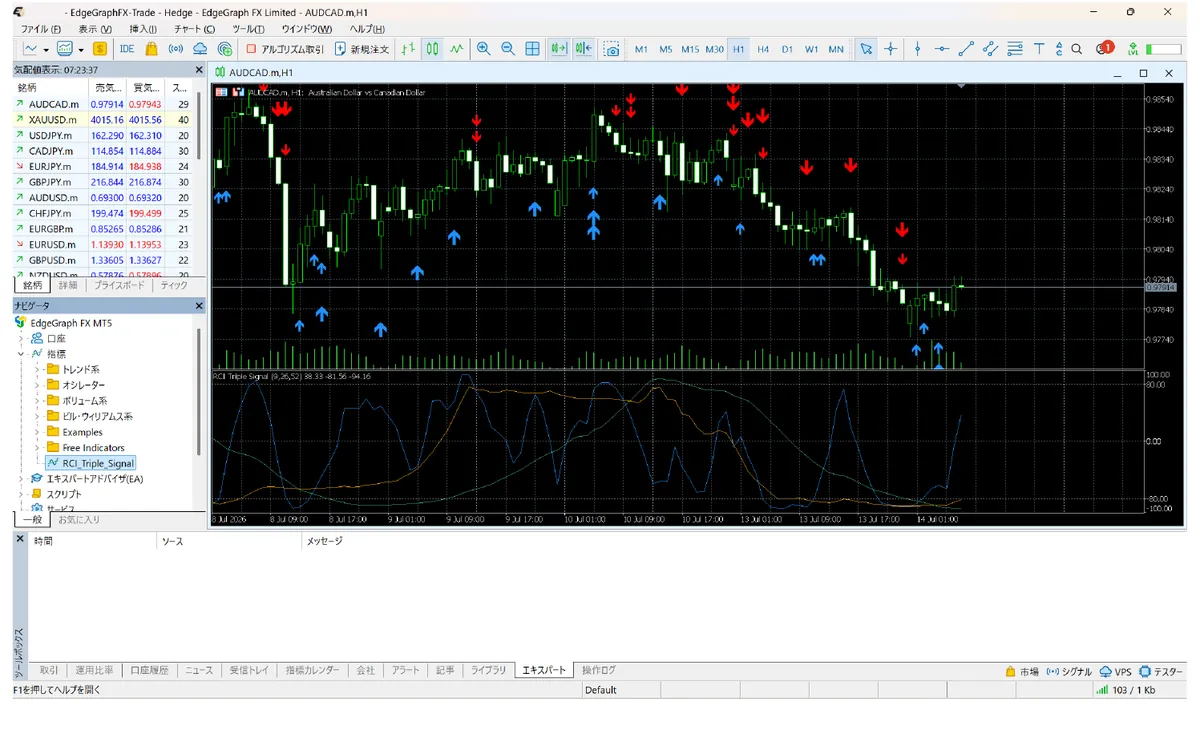
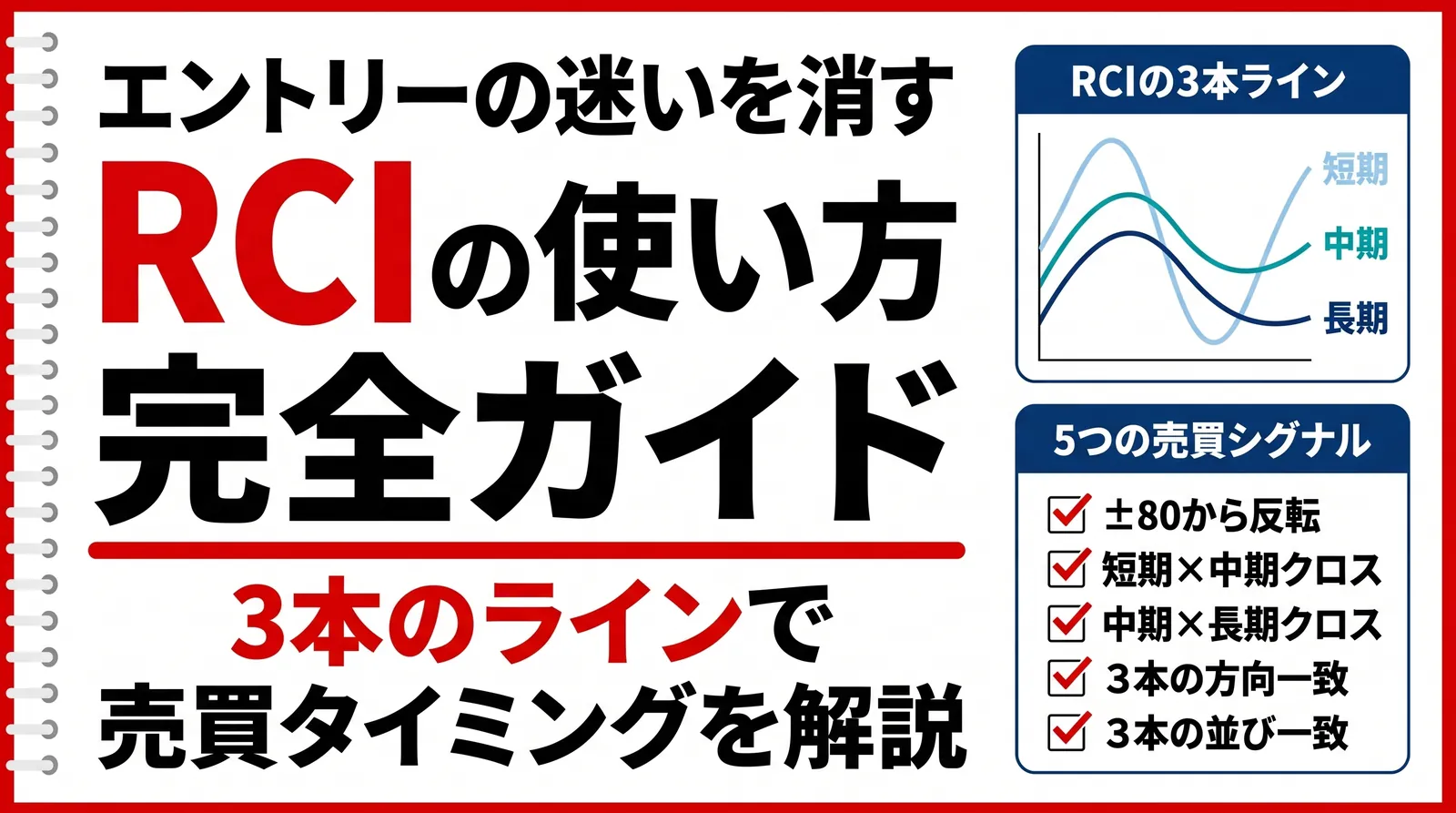
If you want to learn in detail how to read the RCI Triple Signal signals, check this article!
What to Do When the Indicator Does Not Appear
If you put the file in but the indicator doesn't show up, check the cause in the table below.
Quick reference for when the indicator does not appear
| Symptom | Common cause | Fix |
|---|---|---|
| Does not appear in the Navigator's Indicators list | MT5 was not restarted after pasting | Restart MT5, or right-click Indicators and select "Refresh" |
| Not recognized even though it is in the folder | It was not pasted in MQL5 > Indicators | Move it to the correct folder and restart |
| Nothing happens even after adding the file | The file format is not .ex5 / .mq5 | In general, use an .ex5 or .mq5 file for MT5 |
| Cannot log in to the account | The member account and trading account passwords were mixed up, or the server name is wrong | Enter the account number and password from the account opening completion email, and select EdgeGraphFX-Trade as the server |
| Cannot add it in the smartphone app | In general, MT5 for smartphones does not support custom indicators | Install and use it on MT5 for PC |
Check in the following order to identify why it is not appearing.
- Did you restart MT5? Forgetting to restart after pasting is a typical cause, so restart first.
- Is the location correct? Check that it is in MQL5 > Indicators.
- Is the format correct? Check that it is .ex5 or .mq5.
- If it still does not appear, right-click "Indicators" in the Navigator and try "Refresh."
FAQ
Q1. The indicator doesn't appear in the Navigator list. What should I do?
First, restart MT5. Forgetting to restart after pasting is a common cause. If it still doesn't appear, check that the file is in the MQL5 > Indicators folder and that its format is .ex5 or .mq5. It may also appear if you right-click "Indicators" in the Navigator and select "Refresh."
Q2. Can I install indicators in MT5 on a smartphone (iPhone or Android)?
In general, the MT5 smartphone app does not support adding custom indicators. Please install and use it on MT5 for PC.
Q3. I put the indicator in the wrong folder. What should I do?
If you place it anywhere other than MQL5 > Indicators, it will not appear on the chart. Move the file to the correct Indicators folder and restart MT5.
Q4. I can't log in to my account. Which password should I enter?
The password for your member account and the password for your trading account are different. To log in to MT5, enter the account number (login ID) and password listed in your account opening completion email, and select EdgeGraphFX-Trade as the server.
Summary
EdgeGraph FX indicators can be installed in three steps: log in to your account, place the file, and display it on the chart. Check the three points below and try adding your indicator.
- Paste location is MQL5 > Indicators
- Don't forget to restart after pasting
- Log in with your trading account password, not your member password
Once it is installed, try out how the indicator behaves on a demo account first.
We distribute original indicators exclusively for EdgeGraph FX
Download the indicators here!