How to Use the RSI Divergence Indicator: Auto-Detection and Dynamic Lines on MT5
When you read the market with RSI, there are times when price and RSI move out of sync. One way to use this to look for a change in the market is "divergence."
However, the RSI built into MT5 does not find divergence for you. You have to compare the highs and lows of price and RSI yourself while looking at the chart.
That is where NeoRSI, offered by EdgeGraph FX, comes in.
In addition to displaying RSI, NeoRSI detects divergence automatically and lets you check the relevant points on the chart. Overbought and oversold levels are also shown to fit the market, so there is more information to read than with the standard RSI.
This article walks through how to read NeoRSI, what each display means, when divergence appears, and how to adjust the settings when you see too many signals.
We offer a free indicator that adds automatic divergence detection and dynamic lines to RSI
Get Neo RSITable of Contents
- What NeoRSI Can Do
- Screen Colors and How to Read the Display
- The Four Types of Divergence and Their Line Colors
- Divergence Appears 3 Bars After the Peak or Trough
- Watch Markets That Stick Near 70 With the Dynamic Lines
- Signal Line Crossovers and the 50 Filter
- How to Use It After Divergence Appears
- Settings for Too Many or Too Few Signals
- Frequently Asked Questions
- Summary
What NeoRSI Can Do
When you add NeoRSI to a chart, a subwindow opens below it. The subwindow shows RSI along with fixed lines at 70, 50, and 30.
The first feature is automatic divergence detection. It finds places where the direction of the price peaks and troughs differs from that of the RSI peaks and troughs, and draws lines on both the RSI side and the price side.
The second is the dynamic lines. These are Bollinger Bands applied to the RSI itself, and they move up and down to fit the market.
The last is the color coding and the signal line. The color of the RSI line tells you whether it is bullish or bearish, and a crossover with the signal line is marked with an arrow.
The top left of the subwindow also shows an information panel that summarizes the RSI value and the latest divergence in one line.
Note that NeoRSI is an indicator exclusively for EdgeGraph FX. It does not work on MT5 with accounts at other brokers.
If you want to know how to add an indicator to MT5, check the article below.
Screen Colors and How to Read the Display
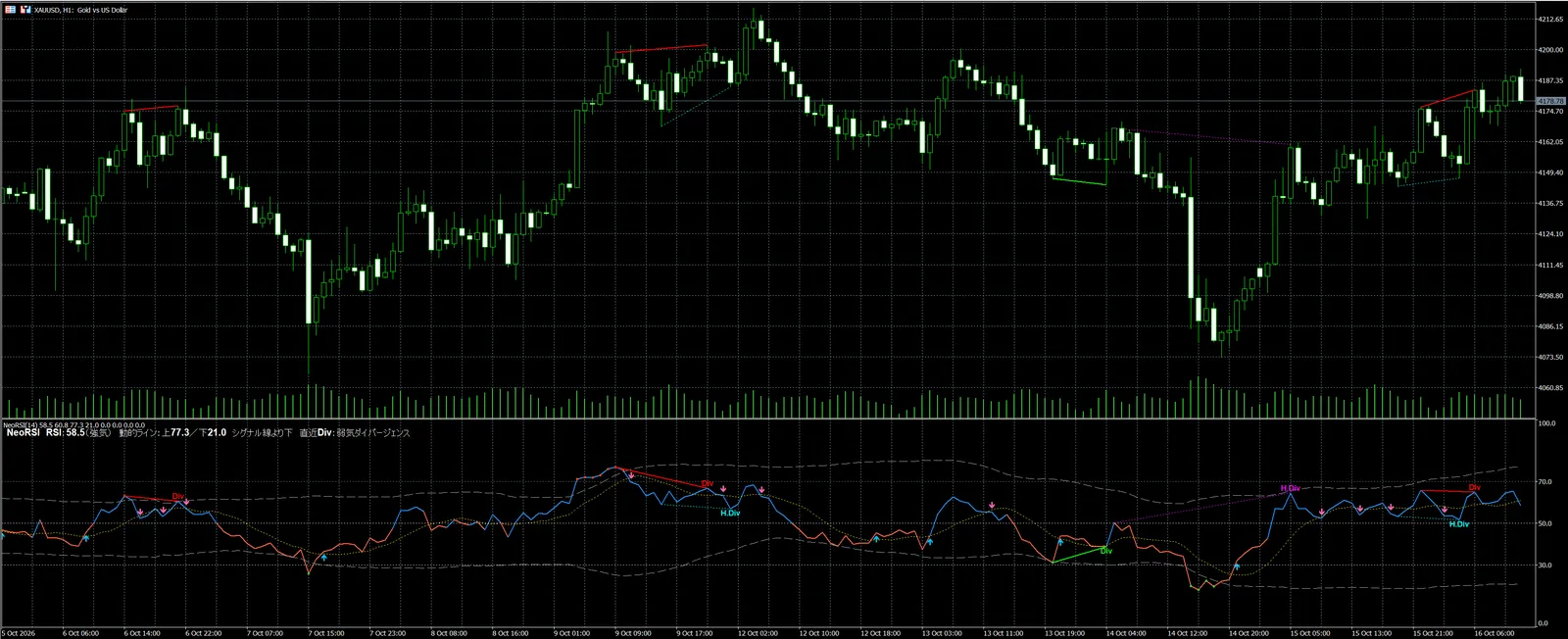
What NeoRSI by EdgeGraph FX shows in the subwindow, and what each display means
| Display | Meaning |
|---|---|
| Blue RSI | RSI is 50 or above, and buying momentum is dominant |
| Red RSI | RSI is below 50, and selling momentum is dominant |
| Gold dotted line | Signal line |
| Gray dashed lines | Upper and lower dynamic lines |
| Orange dot | A bar where RSI exceeded the dynamic upper line |
| Green dot | A bar where RSI fell below the dynamic lower line |
| Light blue up arrow | A bar where RSI crossed above the signal line |
| Pink down arrow | A bar where RSI crossed below the signal line |
For example, the information panel shows a line like the following.
NeoRSI RSI:58.5(強気) 動的ライン:上77.3/下21.0 シグナル線より下 直近Div:弱気ダイバージェンス (NeoRSI, RSI: 58.5 (bullish), dynamic lines: upper 77.3 / lower 21.0, below the signal line, latest Div: bearish divergence)
The parentheses show one of the following: above the dynamic upper line, below the dynamic lower line, overbought, oversold, bullish, or bearish. By default, overbought is 70 or above and oversold is 30 or below.
Note that the panel shows the state of the forming bar. Divergence and crossovers are determined on closed bars, so the values in the panel and the arrows on the chart may appear out of step.
The Four Types of Divergence and Their Line Colors
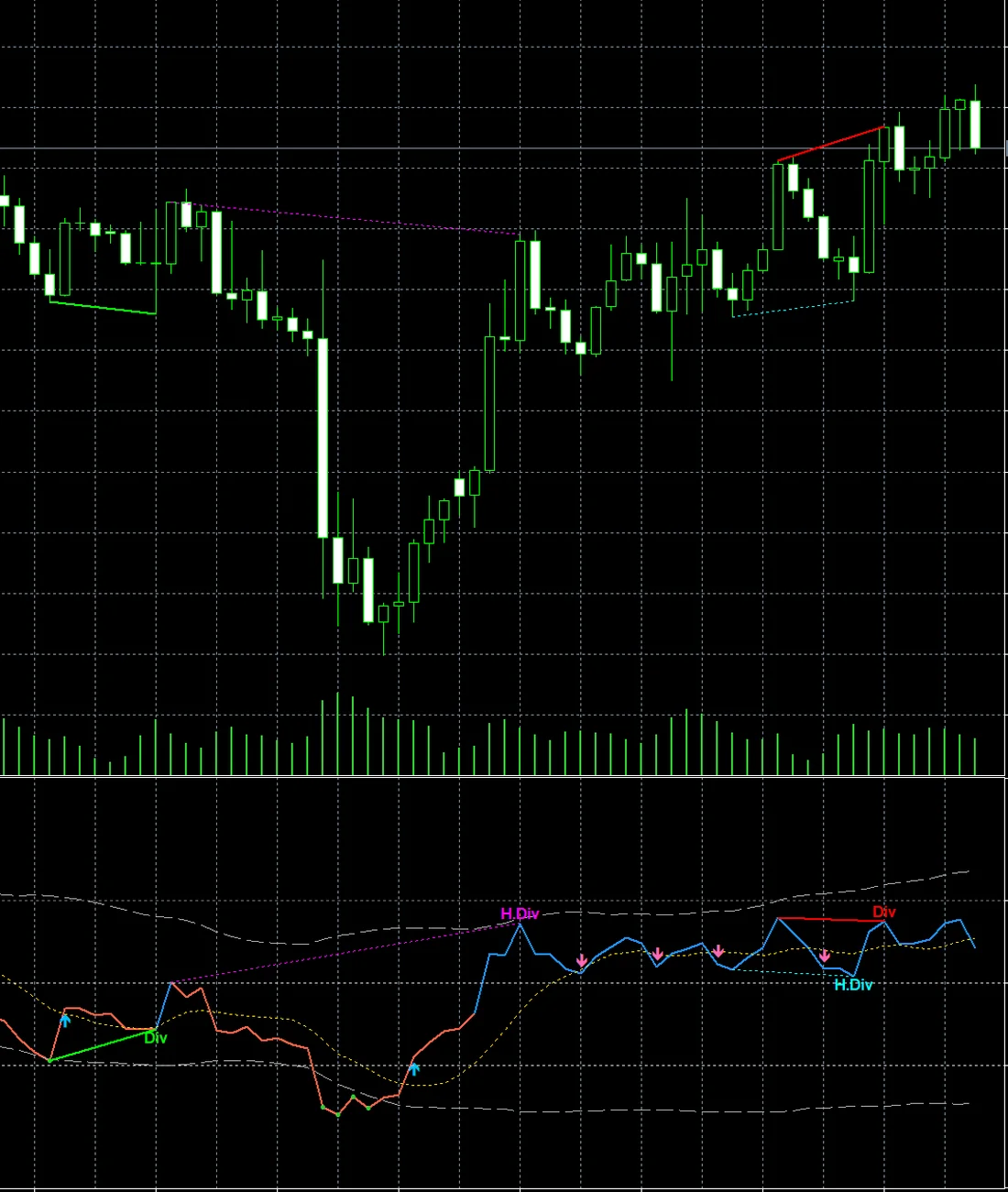
NeoRSI detects four types of divergence, each drawn with a different line color, line style, and label text.
Regular divergence is a sign of a reversal, while hidden divergence is a sign that the trend will continue.
The four types of divergence NeoRSI by EdgeGraph FX draws, and how each appears on screen
| Type | Price and RSI movement | Display |
|---|---|---|
| Bullish divergence | Price makes a lower low, while the RSI trough makes a higher low | Green solid line and Div |
| Bearish divergence | Price makes a higher high, while the RSI peak makes a lower high | Red solid line and Div |
| Bullish hidden | Price makes a higher low, while the RSI trough makes a lower low | Light blue dotted line and H.Div |
| Bearish hidden | Price makes a lower high, while the RSI peak makes a higher high | Magenta dotted line and H.Div |
The lines are drawn in the same color in both the RSI subwindow and the main chart, connecting lows to lows or highs to highs. The price-side line shows which highs or lows were compared.
Of the hidden types, bullish is a candidate for a pullback buy during an uptrend, and bearish is a candidate for a retracement sell during a downtrend.
The next screenshot is a cutout of an XAUUSD 1-hour chart where all four types appear.
If you want to know how RSI and RCI differ in the way divergence appears, check the article below.
Divergence Appears 3 Bars After the Peak or Trough
By default, NeoRSI displays divergence 3 bars after the bar where the RSI peak or trough formed.
An RSI peak is a bar where RSI is higher than on each of the 5 bars to its left and the 3 bars to its right. A trough is the opposite: a bar where RSI is lower than on every bar to its left and right.
A peak or trough is not confirmed until the bars on the right side are in place. The display is delayed because NeoRSI waits for this confirmation before making its determination.
When a new peak is confirmed, it is compared with the previous peak, and when a new trough is confirmed, it is compared with the previous trough. Only when the interval between the two is between 5 and 60 bars does NeoRSI check whether it is divergence.
Because only closed bars are used in the determination, a line that has been displayed will not later disappear or change position.
Watch Markets That Stick Near 70 With the Dynamic Lines
In a strong uptrend, RSI can stay above 70 without falling back. In such a market, the fixed 70 line alone makes it hard to tell whether the move has gone too far.
By default, the dynamic upper line is the average RSI of the last 50 bars plus 2.0 times the standard deviation, and the dynamic lower line is the average minus 2.0 times the standard deviation.
When RSI stays high, the average rises, and the dynamic lines move up with it.
For example, in a market where RSI hovers in the 70s, the dynamic upper line also moves above 70. In the example screenshot above, the dynamic upper line in the information panel was 77.3.
For that reason, even when RSI is above 70, a bar that does not reach the dynamic upper line does not get an orange dot.
The width of the lines is set by the standard deviation multiplier. A smaller multiplier brings the lines closer to RSI, so dots appear more easily.
Signal Line Crossovers and the 50 Filter
By default, the signal line is a 9-bar simple moving average of RSI.
Arrows appear for only two kinds of crossovers: an up-cross below 50 and a down-cross above 50.
To display all crossovers, set 「50より下での上抜け/50より上での下抜けだけ表示」 ("Show only up-crosses below 50 / down-crosses above 50") to false in the settings screen.
Crossovers are also determined on closed bars. When RSI was below the signal line on the previous bar and crosses above it on a closed bar, an up arrow is added. Nothing is displayed on the forming bar.
How to Use It After Divergence Appears
Use Regular Divergence to Look for Tops and Bottoms
When price is making new highs, wait for a red Div to appear.
Once a Div appears, check for a weakening of momentum, such as RSI crossing below the signal line or RSI falling below 50 and turning red, and then consider selling.
To look for a bottom, reverse the logic and use the green Div.
Use Hidden Divergence to Wait for Pullbacks
In an uptrend where RSI stays above 50 and blue, wait for a pullback. When a light blue H.Div appears, consider entering in the direction of the trend, which is buying.
Divergence shows weakening momentum, not that the market will reverse immediately. In a strong trend, divergence can appear several times in a row.
When deciding on a trade, make the judgment together with other technical indicators and money management.
Settings for Too Many or Too Few Signals
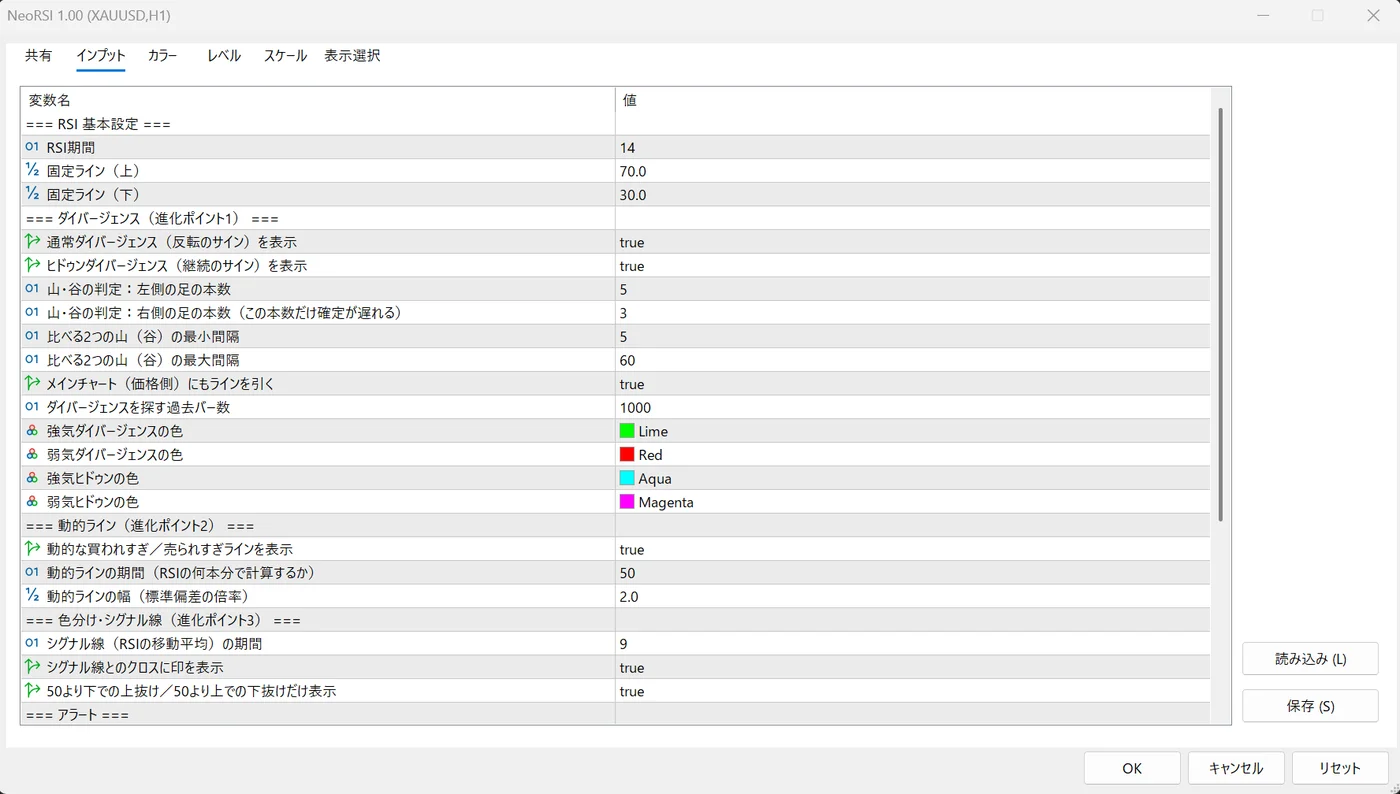
You can change the number and timing of signals in the settings screen that appears when you add NeoRSI to a chart. The problems you may run into and the items to change are as follows.
Items to change when NeoRSI by EdgeGraph FX shows too many or too few signals
| Problem | Item to change | How to change it |
|---|---|---|
| Too much divergence | 「山・谷の判定:左側の足の本数/右側の足の本数」 ("Peak/trough detection: bars on the left / bars on the right") | Increase from the default of 5 and 3 |
| You don't want to see hidden divergence | 「ヒドゥンダイバージェンス(継続のサイン)を表示」 ("Show hidden divergence (continuation signal)") | Set to false |
| Too little divergence | 「比べる2つの山(谷)の最大間隔」 ("Maximum interval between the two peaks (troughs) compared") | Increase from the default of 60 |
| The display is late | 「山・谷の判定:右側の足の本数」 ("Peak/trough detection: bars on the right") | Reduce from the default of 3 to 2 or similar |
Increasing the number of bars on the left and right means only larger peaks and troughs are used, so there are fewer signals, but the display is delayed by the added bars on the right. Conversely, reducing the number of bars on the right makes the display faster, but false signals also increase.
By default, alerts sound only when divergence is detected. They do not sound for a move above or below the dynamic lines or for signal line crossovers.
Alerts do not sound for past bars when you first add the indicator to a chart or when it recalculates right after you change a parameter. They sound only when divergence is detected on a newly closed bar.
Frequently Asked Questions
Summary
By default, NeoRSI divergence is displayed 3 bars after the peak or trough on a closed bar and does not disappear afterward. To make it appear sooner, reduce the number of bars on the right; to reduce the number of signals, increase the number of bars on the left and right.
When you add it to a chart, lines are also drawn on past bars, so you can check right after downloading which highs and lows the price-side line compares.
You can download NeoRSI for free from the "Indicator" tab on the download page of the EdgeGraph FX official website. The listed name is "Neo RSI" and the file name is NeoRSI.zip.
For settings such as the number of bars, it is a good idea to watch how the lines appear with the defaults for a while before changing them.
We offer a free indicator that adds automatic divergence detection and dynamic lines to RSI
Get Neo RSI