EdgeGraph FX PayWave Deposit Guide | Steps and Precautions Explained Simply
PayWave is a deposit method that routes payments through a payment gateway into your EdgeGraph FX account. Once payment is complete, funds are credited to your MT5 account right away, making it a recommended option when you need to fund your account quickly.
To use it, you only need to complete account registration and identity verification with PayWave once. After that, all you need to do is specify the deposit amount and complete payment from your My Page to finish the deposit.
Table of Contents
What Is PayWave?
EdgeGraph FX supports four deposit methods, and PayWave is one of them. The actual payment is processed on the PayWave screen.
On the PayWave screen, you can choose from multiple payment methods, including credit cards and cryptocurrency.Check the PayWave screen for the payment methods actually available.Deposit fees are subject to change, so be sure to check the current amounts on the officialdeposit methods page.
Preparing for a PayWave Deposit
To use PayWave, separately from your EdgeGraph FX account, you need to completePayWave account registration and identity verification (KYC). Here's what you'll need to prepare for registration.
- Email address and password setup
- Full name (in Roman letters) and phone number
- Identity verification document (driver's license, passport, etc.)
- Proof of current address (such as a utility bill)
- Two-factor authentication setup (e.g., Google Authenticator) (recommended)
Identity verification review can sometimes take time. To avoid a last-minute rush before trading, complete your registration early.
Steps to Deposit via PayWave to EdgeGraph FX
Once registration is complete, all you need to do is follow the on-screen instructions to make a deposit.
- Your EdgeGraph FX My Page: log in
- From the menu, select "Deposit"
- For the deposit method, select "PayWave"
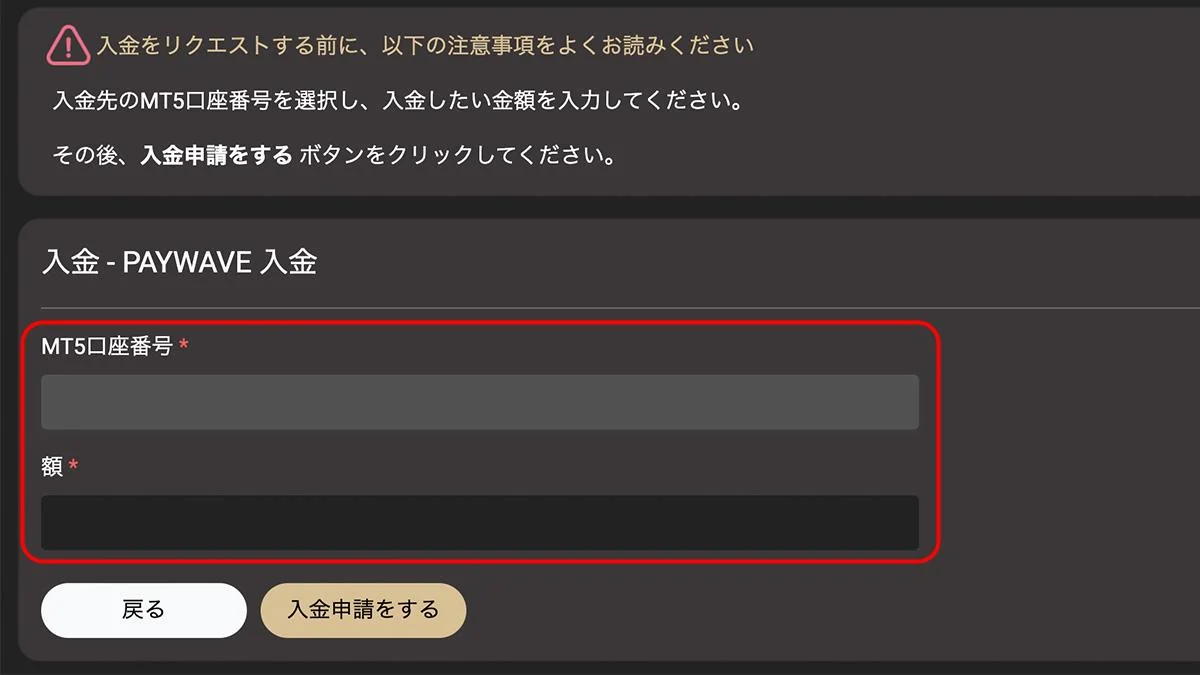
- Enter the deposit amount and the MT5 account number to credit.
- Click "Deposit Request" to proceed to the PayWave payment screen.
- Log in to your PayWave account
- Follow the on-screen instructions to select a payment method
- Enter the required information and confirm payment
- Once payment is complete, the process to credit your MT5 account will begin
If the Credit Card Payment Screen Appears
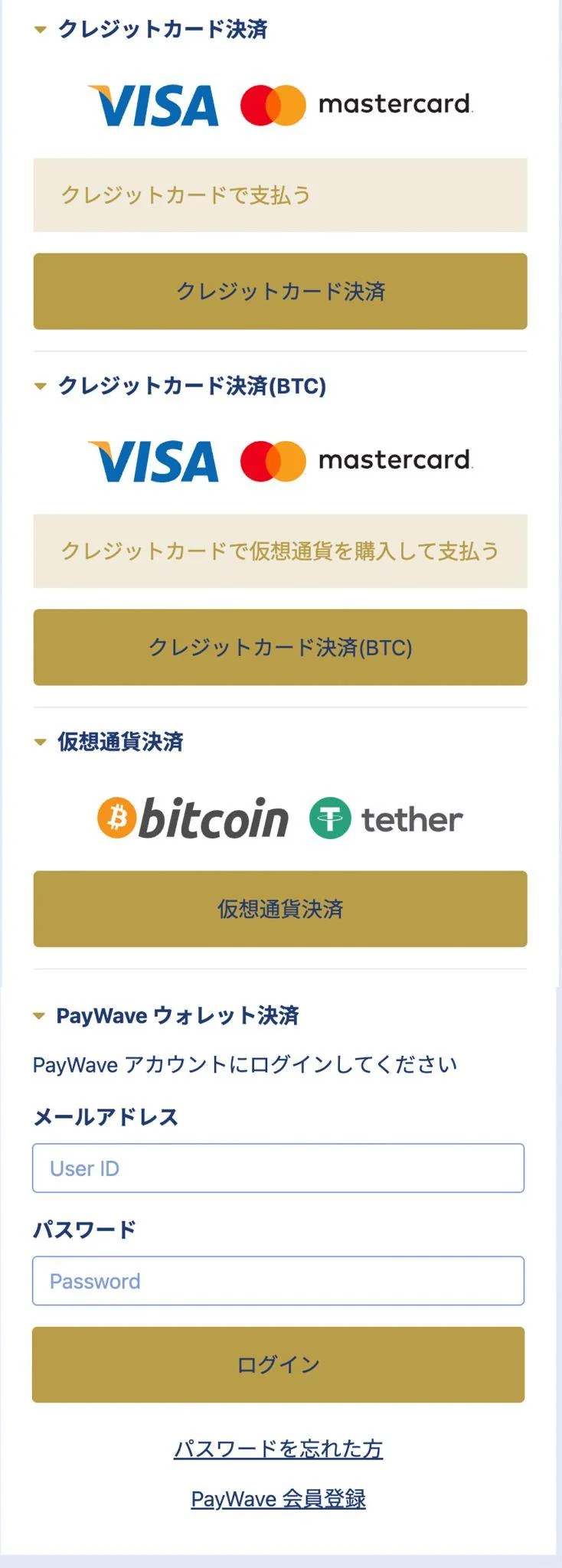
Enter your card number, expiration date, and security code, then complete3D Secure identity verification. Once approved, funds will be credited to your MT5 account right away.
If the Cryptocurrency Payment Screen Appears
If you choose cryptocurrency, the PayWave screen will display adestination address and QR code. Send funds to that address from your own exchange or wallet.Once the required number of confirmations is reached on the network, the funds will be credited to your MT5 account. The time this takes varies depending on blockchain congestion. Before sending, be sure to check the on-screen instructions and the specifications of each network.
Precautions When Depositing
Most deposit issues can be prevented with a bit of upfront checking. At minimum, keep the following five points in mind.
1. Make Sure the Cardholder Name Matches Your MT5 Account Name
As an anti-money-laundering measure,payments where the names don't match may be rejected. Do not use a card registered under a family member's name.
2. Cards Without 3D Secure Support May Be Declined
Cards that don't support 3D Secure (identity verification) may fail at checkout. Be sure to enable it in advance through your card issuer's member portal.
3. Never Choose the Wrong Network for Cryptocurrency
For example, sending USDT via the ERC20 network to an address designated for TRC20. Mistakes like this involving the wrong networkrisk losing your funds, and as a rule, the funds cannot be recovered.Always copy and paste the network and address shown on the screen.
4. Deposit Limits Vary by Account Verification Level
The per-transaction and daily deposit limits are determined by factors such as your card's own spending limit, your PayWave account's verification level, and cryptocurrency-side restrictions. If you plan to deposit a large amount, it's a good idea to contact PayWave support in advance to discuss raising your limit.
5. What to Check If Funds Aren't Credited
If your payment went through but hasn't been credited to MT5, check the following in order.
- Whether the payment status on PayWave shows "Success"
- The status shown in the "Deposit History" section of your EdgeGraph FX My Page
- If there's still no update after waiting a while, contact EdgeGraph FX support
Frequently Asked Questions
Q1. Can I use a debit card or prepaid card?
A. Visa/Mastercard debit cards can be used. However,prepaid cards may not work due to restrictions at overseas merchants. Check your card issuer's terms before use.
Q2. Can I also withdraw via PayWave?
A. Yes, it's supported.
Q3. Is there a limit on the deposit amount?
A. Yes, there is. The limit varies depending on your PayWave account's verification level and the type of card or cryptocurrency you use. For large deposits, it's best to request a limit increase from PayWave support in advance.
Summary
When you need to fund your account quickly,PayWave is a strong option. Since fees and available payment methods can change, it's safest to check the official page and the PayWave payment screen for the latest information before proceeding.
Be sure to check the following four points before making a deposit.
- PayWave account and KYCshould be completed in advance
- The cardholder name and MT5 account namemust match
- 3D Secureshould be enabled in advance
- The cryptocurrency network specificationmust never be wrong